

Available only on the Enterprise plan.
Overview
The HubSpot Contacts integration connects your CRM data directly to Dovetail’s contacts database. It pulls HubSpot contact properties — and the properties of their associated companies — into Dovetail, so that all your customer feedback is automatically enriched with your CRM context. Learn more about Contacts → You choose an email field to match contacts by, map any combination of HubSpot contact and company properties to your Dovetail contact fields, and then sync on demand or let a daily sync keep everything up to date.HubSpot and Salesforce are mutually exclusive — a workspace can have only one CRM enrichment source connected at a time. If Salesforce is already connected, the HubSpot Connect button is disabled until you disconnect Salesforce, and vice versa. You’ll see the tooltip: “Disconnect Salesforce to connect HubSpot. Only one CRM enrichment source can be connected at a time.”
Who can set up the integration
HubSpot is a workspace-level integration, and permissions depend on the action:- Connecting requires Dovetail workspace admin access and Full access or Can edit on the Contacts database. You’ll also need a HubSpot account that can authorize the connection and read contacts and companies.
- Managing field mappings (and the daily-sync setting) is limited to the user who connected the integration. Everyone else with access to Contacts can open the configuration, but only to view it.
- Disconnecting the integration is limited to workspace admins.
- Running a sync, either bulk or per-contact, is available to anyone with edit access to the Contacts database.
Set up the HubSpot integration
Before you begin, make sure your contacts database already includes the fields you want to map from HubSpot — you won’t be able to create new fields while configuring the integration.1
Open the HubSpot card
Go to ⚙️ Settings → Integrations, scroll to Contact enrichment, and click the HubSpot card.
2
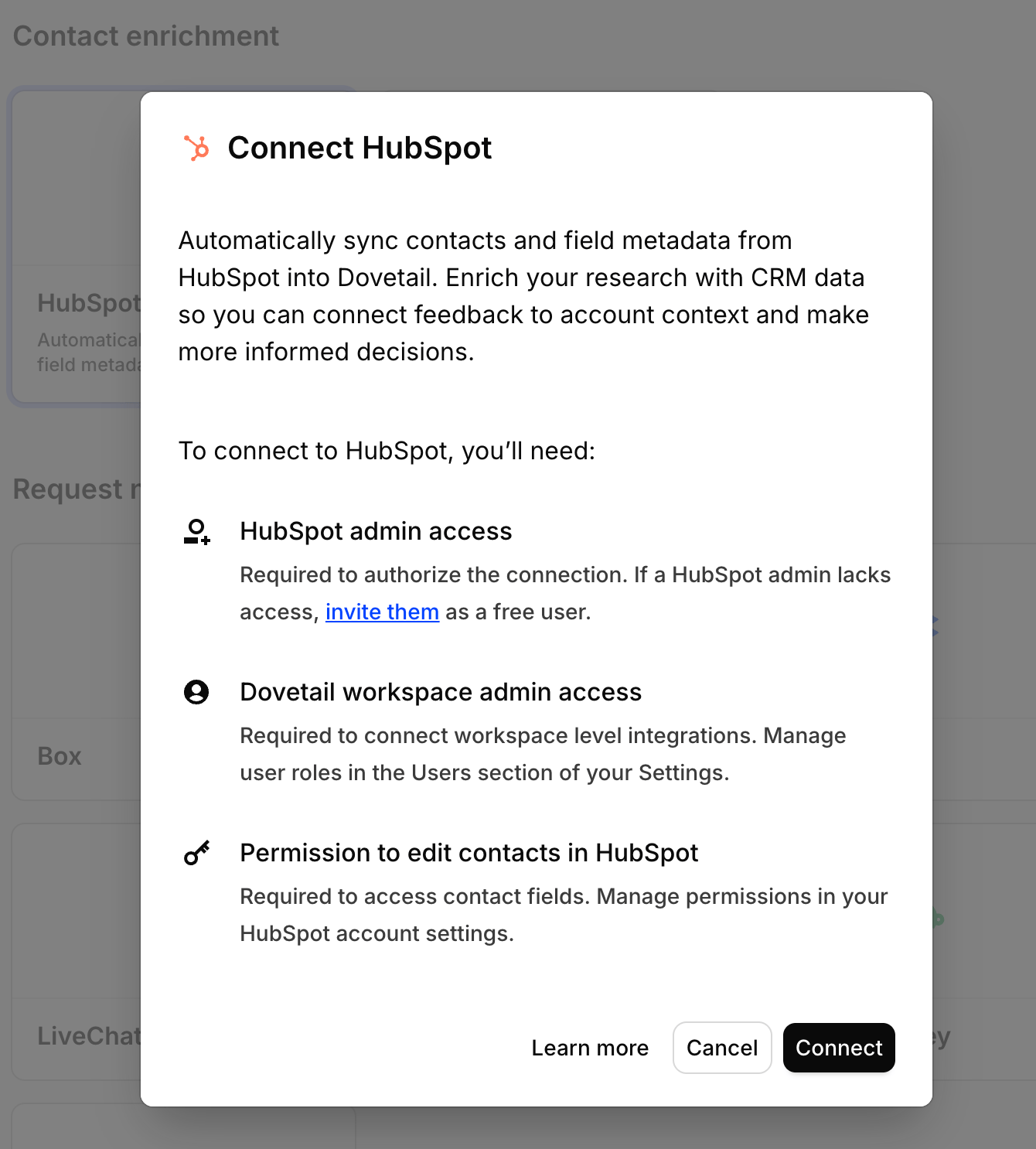
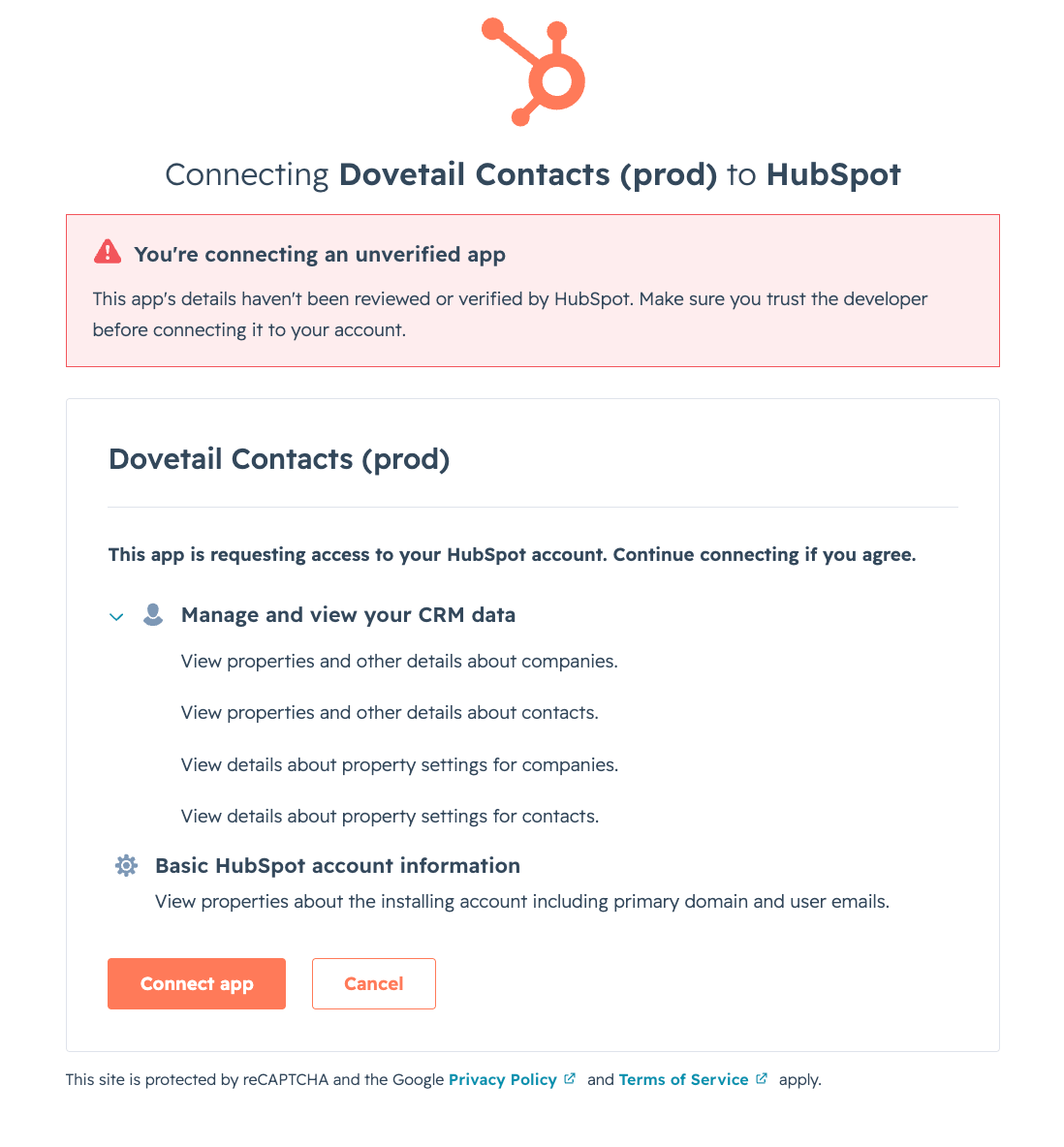
Connect to HubSpot
Click Connect. You’ll be redirected to HubSpot’s consent page. Choose the HubSpot account you want to connect and approve the requested permissions. Dovetail returns to the integration in a Connected state.
3
Open the configuration dialog
Open the HubSpot card again and click Configure.
4
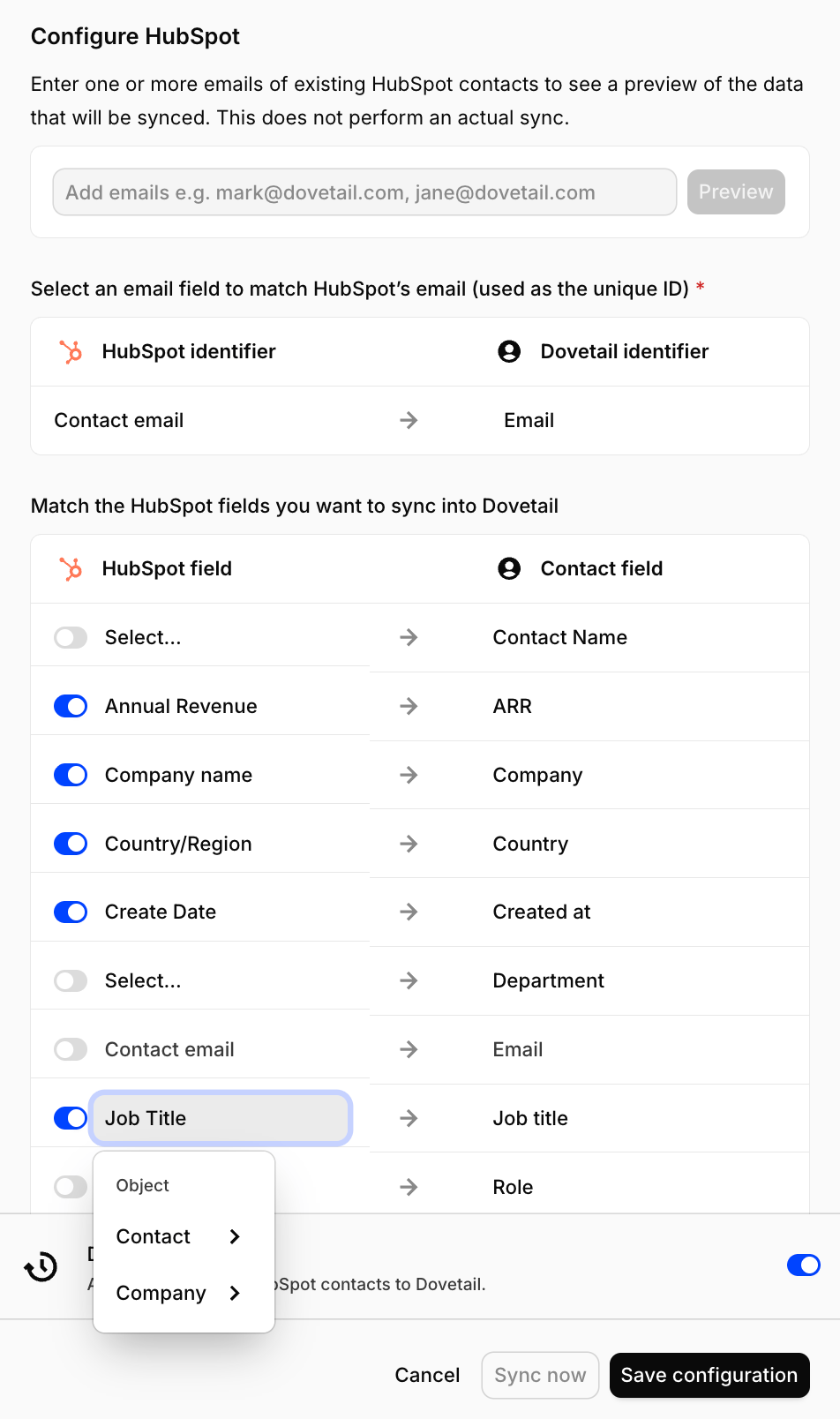
Choose your sync identifier
On the Configuration tab, select the Email field that will match records between HubSpot and Dovetail. This is how Dovetail identifies the same contact across both systems.
5
Map your fields
Map HubSpot contact properties (
Contact.*) and associated company properties (Company.*) to your existing Dovetail contact fields — for example, Contact.firstname to First name, Contact.jobtitle to Job title, Company.name to Company name. Make sure the field types match (for example, a number property in HubSpot maps to a number field in Dovetail).6
Preview your mapping
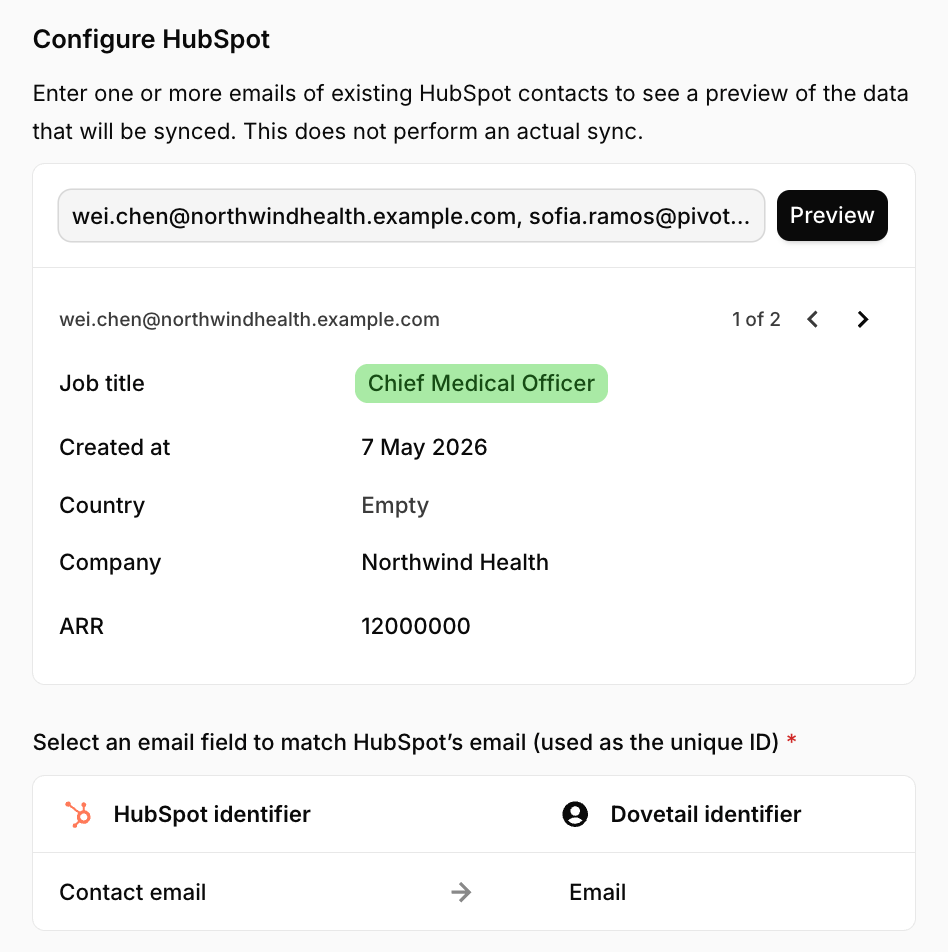
Switch to the Preview tab to see how the mapped values will appear for real contacts. Nothing is saved to your contacts yet — use this to validate the configuration and spot any errors.
7
Turn on daily syncing and save
Optionally toggle on Daily syncing, then click Save. Once configured, you’re ready to start syncing.
- Connect HubSpot
- Configure mapping
- Preview
Syncing your contacts
Once your configuration looks right, you can enrich your Dovetail contacts with HubSpot data. There are three ways to sync.Set up an automatic daily sync
- Open the Configure dialog from the HubSpot card on the Integrations page, or from the Source dialog in the Contacts database.
- On the Configuration tab, switch on Daily syncing. Only the user who connected HubSpot can change this setting.
- Each day, Dovetail pulls fresh data from HubSpot for your synced contacts, as well as for any contacts whose email (the sync identifier) matches a HubSpot record. This keeps your Dovetail contacts up to date with no manual action needed.
- If a sync only partially completes or fails, Dovetail notifies you so you can resolve it from the Sync errors tab.
Sync an individual contact
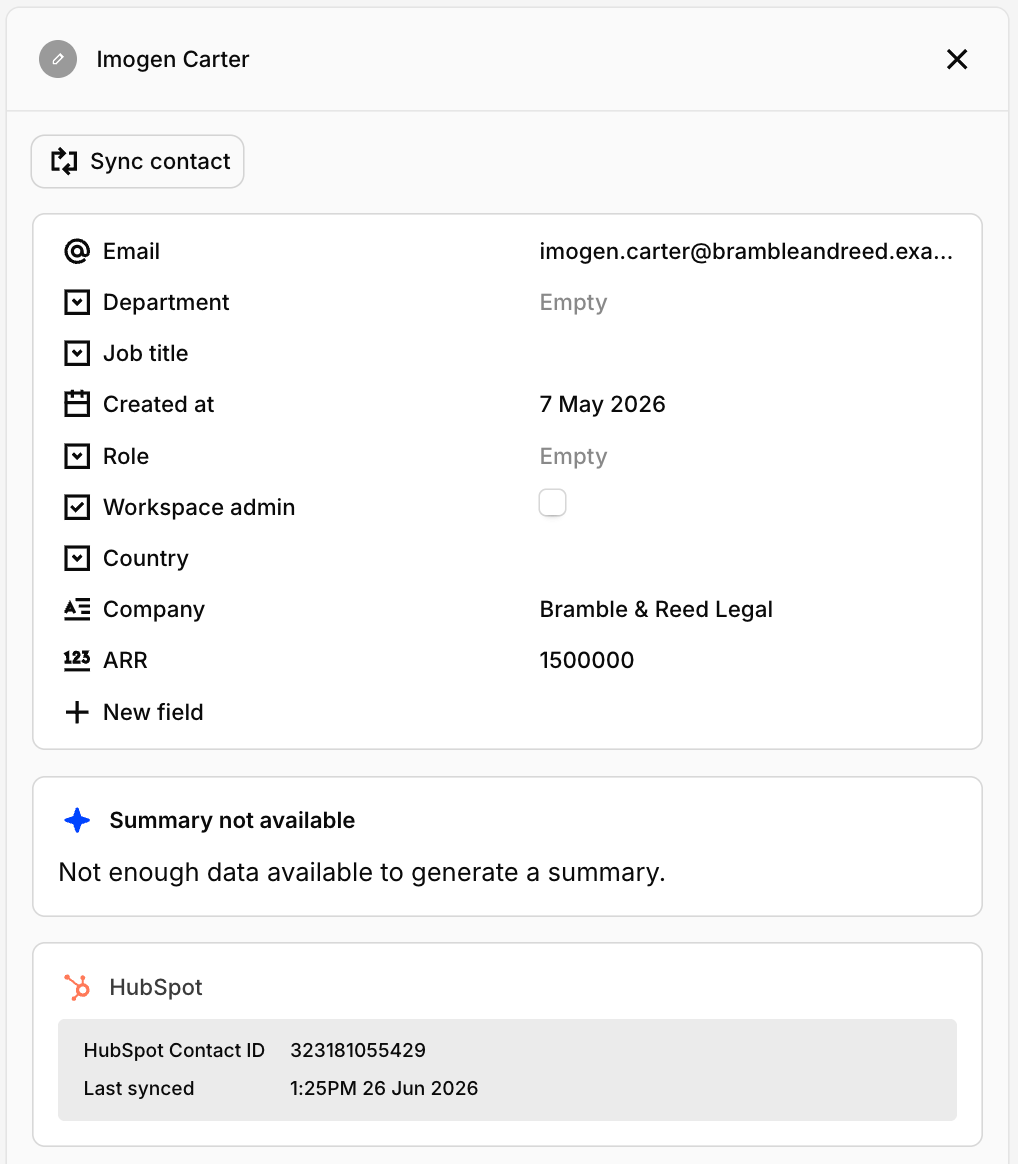
- Go to the Contacts database and select a contact (make sure they have an email address).
- Open the contact side panel and click Sync contact. The mapped fields from their HubSpot record populate in Dovetail within a few seconds.
Bulk sync contacts
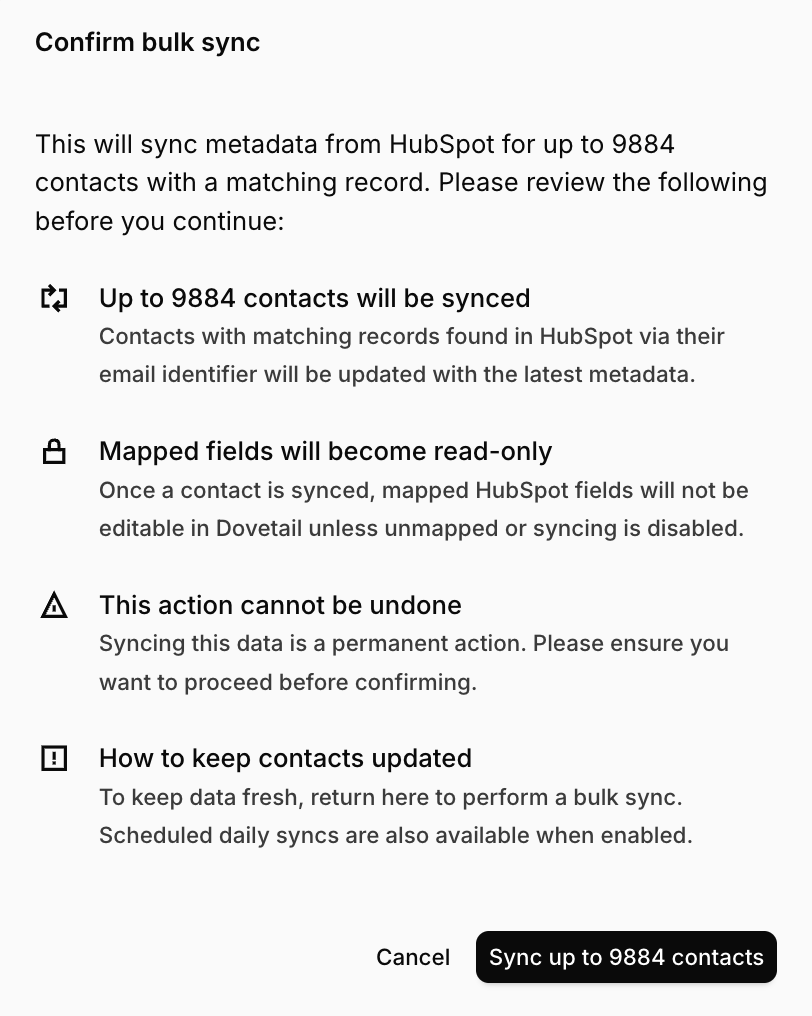
- In the Contacts database, click Sync HubSpot contacts in the header.
- A confirmation dialog shows how many of your Dovetail contacts currently have a matching HubSpot record (for example, “29 of 32” — contacts whose email doesn’t exist in HubSpot are skipped).
- Confirm to sync every matching contact in one run.
Field protection
While the HubSpot integration is connected and a field is mapped, that field is read-only on the person record — you’ll see a tooltip explaining it’s managed by the HubSpot integration. This prevents anyone from accidentally overwriting values that will be replaced on the next sync. Turning off the mapping or disconnecting HubSpot makes the field editable again.Adding new fields after setup
HubSpot properties don’t sync into Dovetail automatically. When you add a new property in HubSpot, you’ll need to map it in Dovetail so it appears on your contacts:- Add the property in HubSpot on the contact or company object, as you normally would.
- Open the Configure dialog in Dovetail from Settings → Integrations, or from the Contacts database settings. Go to the Configuration tab.
- Map the new property. Your new HubSpot property appears automatically in the available-properties dropdown — map it to an existing Dovetail person field.
- Trigger a sync. The next daily sync picks up the change, or you can run a manual sync straight away.
- View the values. After the sync, the new field values appear on matching contacts. Contacts are matched by the email sync identifier, and fields synced from HubSpot are read-only on those contacts.
Permissions and data handling
Requested permissionsWhen you connect HubSpot to Dovetail, you grant the following read-only scopes:
crm.objects.contacts.read— read your HubSpot contacts.crm.schemas.contacts.read— read the contact property definitions so you can choose which to map.crm.objects.companies.read— read the companies associated with your contacts.crm.schemas.companies.read— read the company property definitions so you can choose which to map.
If a synced contact returns an empty value for a mapped property, Dovetail keeps the existing value for that field rather than overwriting it with a blank. Meaningful data won’t be lost just because the source returned nothing. Duplicate records
If multiple HubSpot contacts share the same email address, Dovetail uses the first matching record HubSpot returns. We recommend deduplicating contacts in HubSpot to keep results predictable.
Resolving sync errors
If a contact can’t be synced, it appears on the Sync errors tab of the Configure dialog. From the••• menu on each row you can:
- Re-sync contact — retry the sync. If it succeeds, the contact comes off the list and syncing resumes for them.
- Un-sync contact — detach the contact from HubSpot entirely. They stay in your Contacts database with their current data, but future syncs won’t touch them.
Key behaviors and limitations
- One-way sync: Dovetail pulls data from HubSpot and never pushes changes back.
- Matching: already-synced contacts re-sync by their HubSpot record ID; new contacts are matched by the email sync identifier.
- One CRM source per workspace: HubSpot and Salesforce can’t be connected at the same time.
- Editing: mapped fields are read-only on contacts while the integration is connected.
- Disconnecting: contacts keep their synced data when you disconnect, and the fields become editable again. Reconnecting resumes syncing without losing data.
- Database limits: the contacts database supports up to 50,000 contacts.
- Character limits: text fields hold up to 300 characters; select options up to 50 characters. Longer values are truncated.
- Field limits: Select and Multi-select fields can each have up to 200 options, and Multi-select fields allow up to 100 selections. If you expect to exceed these, use a text field instead.