


Overview
Supercharge every Claude chat with real customer intelligence. Query your Dovetail workspace, surface relevant insights and verbatim quotes, and ground PRDs, roadmap decisions, or exec updates in real evidence, without ever stepping out of the chat. Dovetail connects to Claude via a remote MCP connector using OAuth, so you just sign in and authorize- no API tokens or manual server configuration needed for Claude.ai.Dovetail API scopes granted to Claude:
project:read— Read projectsproject:write— Create and modify projects via APInote:read— Read notes/data via APInote:write— Create and modify notes and highlights via APIinsight:read— Read insights/docs via APIinsight:write— Create and modify insights/docs via APIsearch:read— Search across workspace content via APIchannel:read— Read channels via APIchannel:write— Create and modify channels and channel data points via APIfield:read— Read fields via APIcontact:read— Read contacts via APIcontact:write— Create and modify contacts via APIuser:read— Read workspace users via APIfile:read— Read files via API
Connect Dovetail to Claude
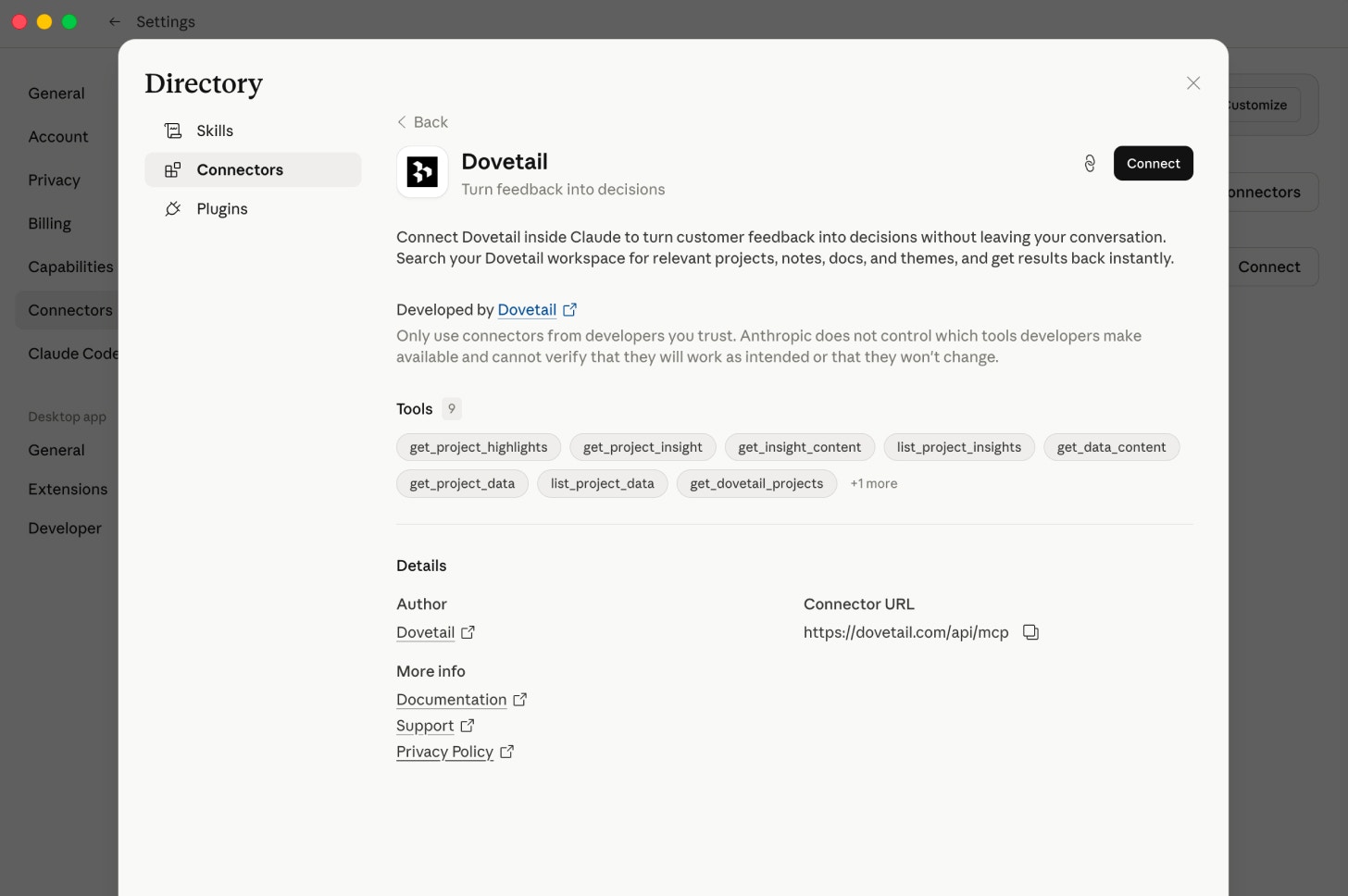
On Claude’s individual plans
- Sign in to Dovetail with your usual credentials
- Go to Claude.ai
- Open Customize → Connectors
- Click “Connect”
- Authorize access
Grant Claude permission to access your Dovetail workspace. - Start asking questions
Claude can now search your workspace, read project insights, and surface customer highlights
On Claude Team or Enterprise plans
- An admin first enables Dovetail under Organization settings: Organization settings → Connectors → Add → All Available → Search for Dovetail
- Users then connect it from Settings → Customize → Connectors
- Click “Connect”
- Authorize access
- Grant Claude permission to access your Dovetail workspace.
- Start asking questions
- Claude can now search your workspace, read project insights, and surface customer highlights.
Using Claude Code
- Once the connector has been added to your account, it is automatically available in Claude Code. You can confirm it’s ready to use by running the
/mcpcommand in your terminal and checking that Dovetail shows as connected.
To connect to the Dovetail MCP server directly from Claude Code, run this command in your terminal:
claude mcp add --transport http dovetail https://dovetail.com/api/mcpUsing Dovetail in your prompts
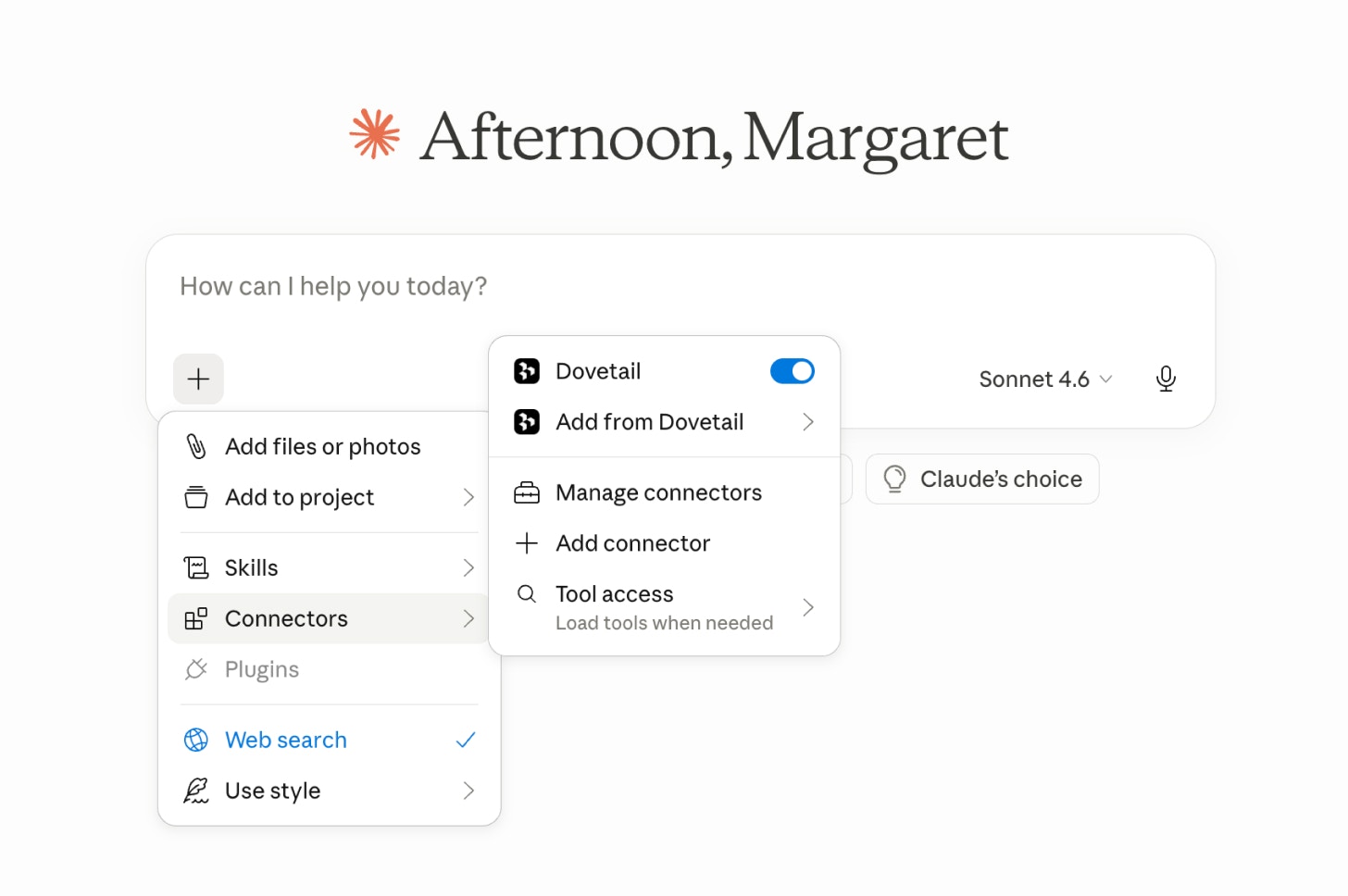
- Open a new chat in Claude.ai.
- Click [+] on the lower left of the message input to open the tools menu.
- Select Connectors, then toggle Dovetail on
- Dovetail indicator will appear next to the input, and Claude will now use your workspace as context for that conversation.
Example: planning a roadmap
Example: writing a design brief
Example: preparing a sales pitch
Example: preparing for renewals
Tips
Use exact project names
Use exact project names
Claude matches against your workspace, so ask it to list projects first if you’re unsure.
Combine tools in one conversation
Combine tools in one conversation
The best results come from chaining search, insights, and highlights together, e.g. “Search for ABC, then get the full insight, then pull supporting quotes”.
Filter by content type
Filter by content type
Ask Claude to search only highlights or only insights if results are too broad.
Page through large projects
Page through large projects
Results return 20 items at a time. Ask Claude to “get the next page” for more.
Learn more
Documentation Claude Help Center: Use connectors to extend Claude’s capabilitiesFAQS:
I'm having issues connecting to Dovetail to the MCP. What can I do?
I'm having issues connecting to Dovetail to the MCP. What can I do?
We recommend connecting Dovetail to your MCP tool via an incognito browser by following these steps:
- Open an incognito/private browser window
- Log into your Dovetail workspace
- Log into [Claude / Figma / MCP tool] using the same login method you use for Dovetail
- Connect Dovetail
- A screen recording of the steps above with your browser console logs
- Confirmation of the integration/tool you’re connecting (Claude, MCP, Figma, etc.)\
- Chrome/Edge: Press
Ctrl + Shift + I(Windows/Linux) orCmd + Option + I(macOS) - Firefox: Press
Ctrl + Shift + K(Windows/Linux) orCmd + Option + K(macOS). - Alternatively, you can right-click on the webpage, select “Inspect” or “Inspect Element,” and navigate to the “Console” tab.