


Overview
Claude can query your Dovetail workspace for docs and verbatim customer quotes, so PRDs, roadmap decisions, and executive updates can draw on customer evidence from within the chat. Dovetail connects to Claude through a remote MCP connector that uses OAuth. You sign in and authorize, and no API tokens or manual server configuration are needed for Claude.ai. Claude is a connected app: each user connects Dovetail to their own Claude account. To start from Dovetail instead, go to Settings → Connected apps, find Claude under MCP connectors, and selectEnable. This opens Claude’s Dovetail connector page in a new tab, and Dovetail shows a dialog that summarizes the remaining steps. Learn more about connected apps →
Permissions
Claude requests the following Dovetail API scopes:project:read— Read projectsproject:write— Create and modify projects via APInote:read— Read notes/data via APInote:write— Create and modify notes and highlights via APIinsight:read— Read insights/docs via APIinsight:write— Create and modify insights/docs via APIsearch:read— Search across workspace content via APIchannel:read— Read channels via APIchannel:write— Create and modify channels and channel data points via APIfield:read— Read fields via APIcontact:read— Read contacts via APIcontact:write— Create and modify contacts via APIuser:read— Read workspace users via APIfile:read— Read files via API
- Full access — Claude receives every permission it requested.
- Read only — Claude receives only the read permissions. It can search and read your workspace, but can’t create or change anything.
- Custom — select individual permissions, such as Docs — Read or Data — Write. Only the permissions Claude requested are listed, and at least one must be selected.
Connect Dovetail to Claude
Connect on an individual plan
- Sign in to Dovetail.
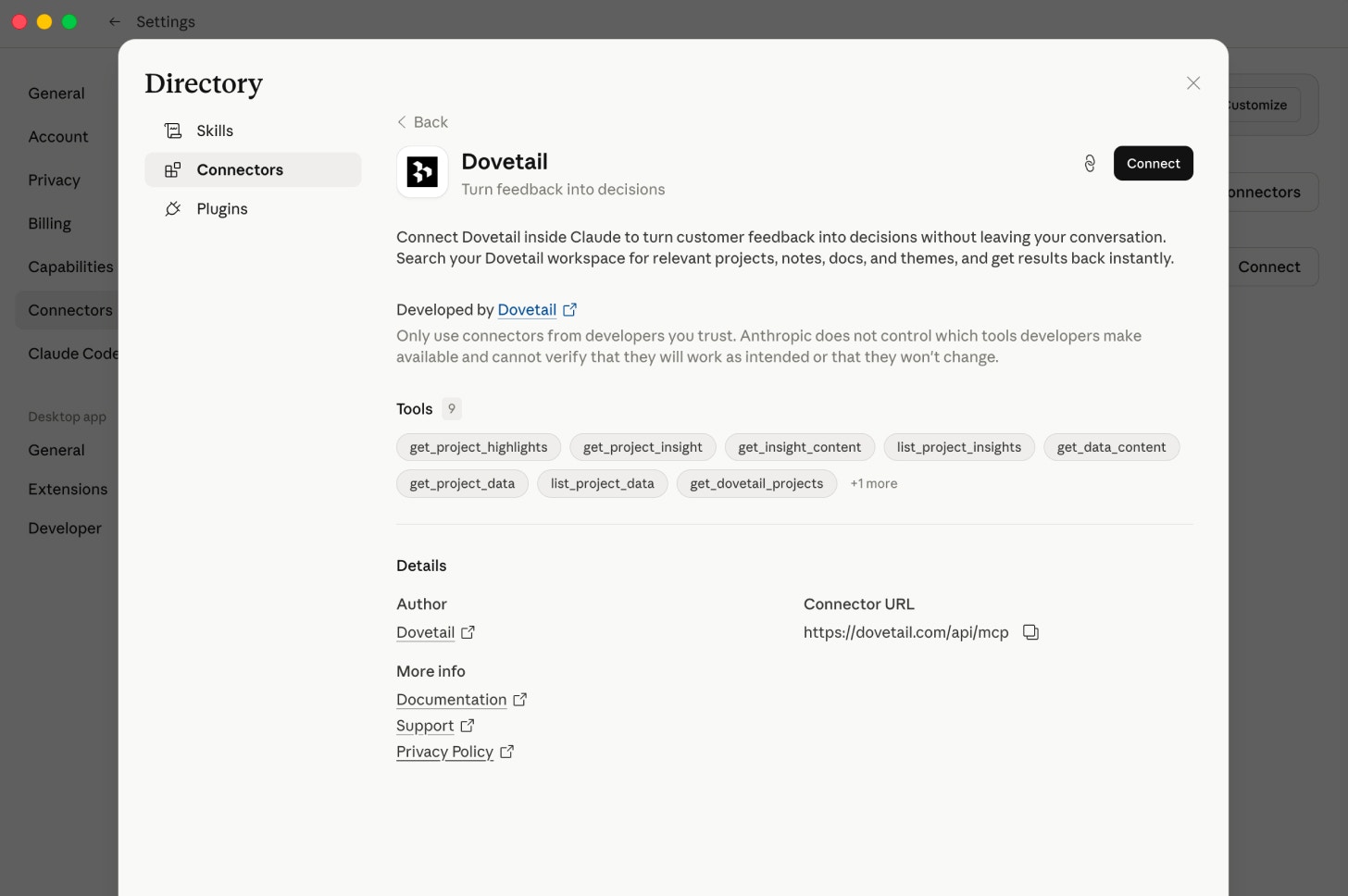
- In Claude.ai, go to Settings → Customize → Connectors.
- Find Dovetail and select
Connect. - Under Permissions, choose Full access, Read only, or Custom, then select
Continue. If you chose Custom, select the permissions to grant and selectContinueagain. - Authorize Claude to access your Dovetail workspace.
Connect on a Team or Enterprise plan
An admin first enables Dovetail for the organization: in Claude, go to Organization settings → Connectors → Add → All available, and search for Dovetail. Each user then connects it:- In Claude.ai, go to Settings → Customize → Connectors.
- Find Dovetail and select
Connect. - Under Permissions, choose Full access, Read only, or Custom, then select
Continue. If you chose Custom, select the permissions to grant and selectContinueagain. - Authorize Claude to access your Dovetail workspace.
Using Claude Code
Once the connector has been added to your Claude account (following the steps above), it is automatically available in Claude Code. You can confirm it’s ready to use by running the/mcp command in your terminal and checking that Dovetail shows as connected.
To connect to the Dovetail MCP server directly from Claude Code, run this command in your terminal:
claude mcp add --transport http dovetail https://dovetail.com/api/mcpUsing Dovetail in your prompts
- Open a new chat in Claude.ai.
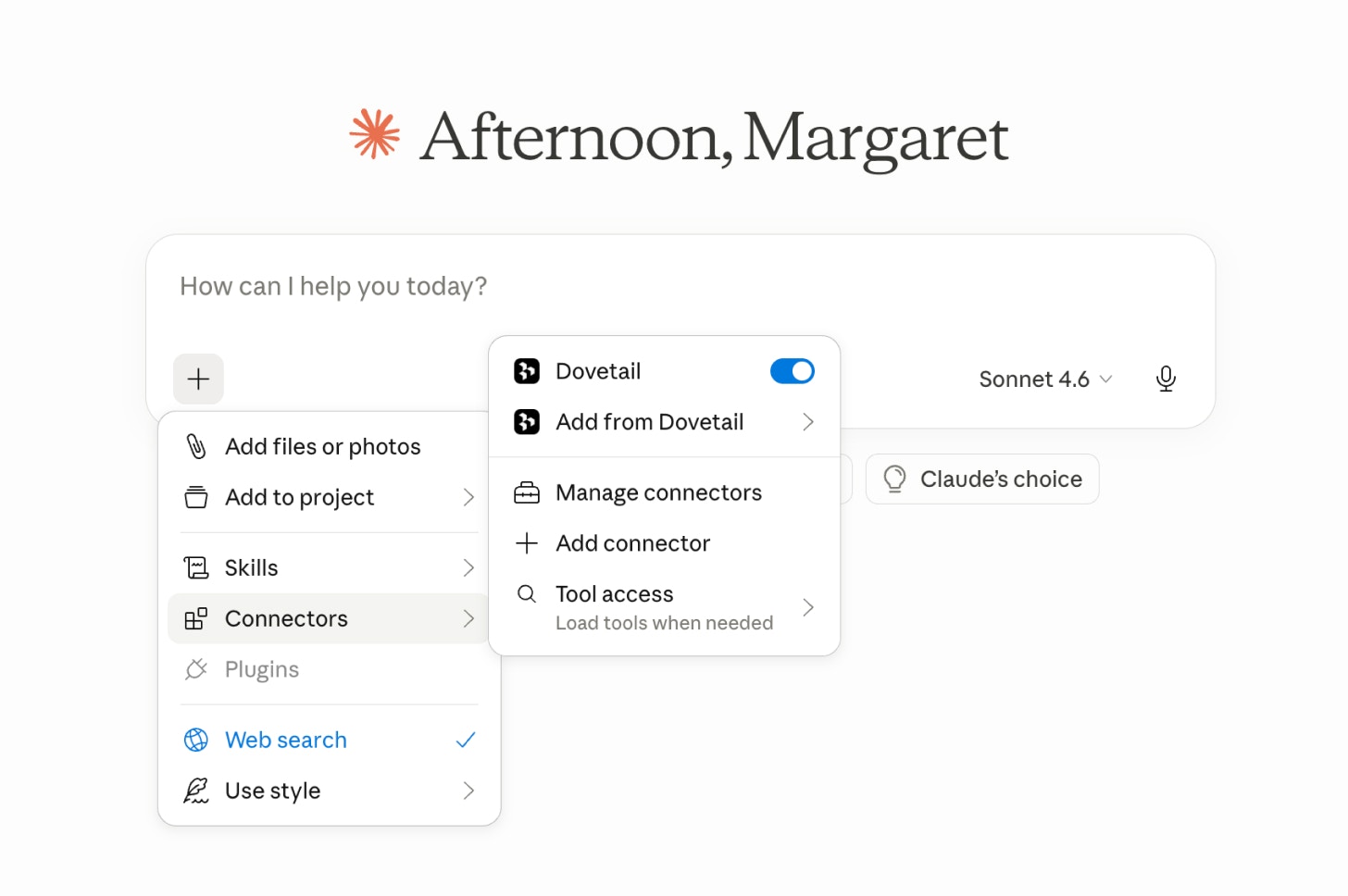
- Select [+] at the lower left of the message input to open the tools menu.
- Select Connectors, then turn on Dovetail.
Example: planning a roadmap
Example: writing a design brief
Example: preparing a sales pitch
Example: preparing for renewals
Tips
Use exact project names
Use exact project names
Claude matches against your workspace, so ask it to list projects first if you’re unsure.
Combine tools in one conversation
Combine tools in one conversation
The best results come from chaining search, docs, and highlights together, for example “Search for ABC, then get the full doc, then pull supporting quotes.”
Filter by content type
Filter by content type
Ask Claude to search only highlights or only docs if results are too broad.
Page through large projects
Page through large projects
Results return 20 items at a time. Ask Claude to “get the next page” for more.