

Overview
The PostHog integration imports responses to the PostHog surveys you choose. Dovetail analyzes the open-text answers, and brings score and choice answers across as fields, including NPS and CSAT scores you can chart in Dashboards. The source connects to one PostHog project with a personal API key. Each survey you select becomes a dataset.
A workspace admin creates the PostHog source once for the whole workspace, and channels then add its surveys. Learn more about Sources →
If your workspace doesn’t have Sources, see Connect a tool without Sources. The requirements under Before you start for the tool itself still apply.
Before you start
In Dovetail
- A workspace admin creates the source. Other users can request it.
- The credentials you connect with are shared by the whole workspace. See Shared credentials for how to choose an account.
In PostHog
- A PostHog Cloud project. Dovetail connects to PostHog Cloud US (
us.posthog.com) or PostHog Cloud EU (eu.posthog.com). Self-hosted PostHog isn’t supported. - The project ID. A PostHog source reads surveys from one PostHog project. The numeric project ID is under Project settings → Details in PostHog.
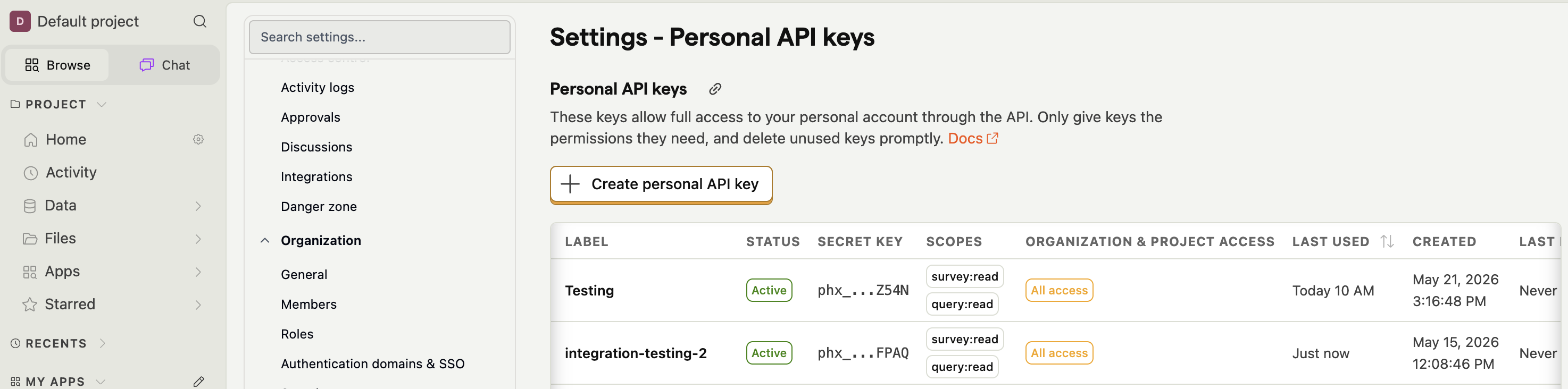
- A personal API key scoped to
survey:readandquery:read. In PostHog, open your account settings, go to Personal API keys, and selectCreate personal API key. Select both scopes. If you limit the key’s project access, include the project you’re connecting.
Create the PostHog source
1
Open Sources and select PostHog
In the sidebar, select Sources, then select PostHog.
2
Connect PostHog
Fill in the credentials form, then select
Connect:- Region:
United States (us.posthog.com)orEuropean Union (eu.posthog.com), to match the PostHog Cloud your project is on. - Project ID: the numeric ID from Project settings → Details in PostHog.
- API key: your personal API key.
3
Choose surveys and an import period
In Select surveys, choose one or more surveys. Dovetail analyzes every open-text question in the surveys you select. Then choose an Import period. See Import period.
4
Choose who can use the source
Choose who can use the source, then select
Next. See Create a source.5
Create the source
Choose whether to auto-redact sensitive information in the source’s data, then select
Create source. The first import starts right away. See Redact data from sources.Authentication and permissions
PostHog connects with a personal API key. Dovetail uses its two scopes to read:survey:read, to list the project’s surveys and read their questions.query:read, to fetch the survey responses.
survey:read when you connect, so a key without query:read is accepted but the source then can’t read responses.
The API key is stored once for the whole workspace. To change the account or credentials, see Reconnect a source.
Datasets
Each PostHog survey you select becomes its own dataset and syncs on its own, so a problem with one survey doesn’t stop the others. A channel can add some or all of the source’s surveys. The picker lists the connected project’s surveys that aren’t archived. Every open-text question in a survey is analyzed, and every score and choice question becomes a field. A survey needs at least one open-text question to import anything, because Dovetail creates data points only from open-text answers. To add more surveys later, open the source and selectAdd survey. See Add datasets.
What gets imported
Each survey submission becomes one data point. Its text is the respondent’s open-text answers, each paired with its question. This is the text Dovetail analyzes.Always imported
Imported when present
To rename the fields above or change their types, see Source fields. Need a field that isn’t on this list? Let us know.
Not imported
- Submissions with no open-text answer. A respondent who answers only score or choice questions doesn’t create a data point.
- Other question types, such as link questions.
- Other person and event properties. Dovetail uses only the person’s email and name.
- Answers added to a partial response after its data point is created.
Customer emails
This data includes customer email addresses, so Dovetail can link data points to contacts. See Create contacts from source data. For a response to carry an email, the respondent has to be an identified PostHog person with anemail property, for example through posthog.identify(distinctId, { email, name }). Responses from anonymous respondents still import, but they aren’t linked to a contact.
Scores and field types
Each score question in a survey becomes its own field, named after the question:
To chart scores in Dashboards, the field must use the NPS or CSAT type. See NPS and CSAT scores for Dashboards.
Sync behavior
The first import starts when the source is created. After that, the source syncs about every hour. See Manage a source.- Import period. The import period applies to when each response was submitted. Responses submitted before the start of the period aren’t imported.
- Ongoing sync. Each sync imports responses submitted since the previous sync.
- Partial responses. For surveys that record partial responses, answers the respondent gives after Dovetail creates the data point aren’t added to it.
Troubleshooting
Dovetail doesn’t accept my credentials. Check that:- Region matches the PostHog Cloud your project is on.
- Project ID is the numeric ID from Project settings → Details in PostHog, not the project’s name or its project API key.
- API key is a personal API key with the
survey:readscope, and its project access includes the project.
query:read scope, or the user who created the key has lost access to the project. Fix this in PostHog, then select Sync now. See Source statuses.
The source needs to be reconnected. PostHog no longer accepts the API key, for example because it was deleted or rolled. Create a new personal API key with both scopes, then reconnect the source.
A survey isn’t in the picker. Check that the survey is in the project whose ID you entered, and that it isn’t archived in PostHog.
A survey has responses in PostHog, but nothing imported. Check that:
- The survey has at least one open-text question. Surveys with only score or choice questions import nothing.
- The responses include an open-text answer. Responses that answer only score or choice questions aren’t imported.
- The responses were submitted within the import period. See Get older data.
- The survey is launched, and PostHog captures
survey sentevents for it. - The channel includes the survey’s dataset. See Missing or outdated data.
Revoke access in PostHog
Pausing or deleting the source in Dovetail doesn’t delete the personal API key in PostHog. To cut off Dovetail’s access, delete the key in PostHog under Personal API keys in your account settings. Responses already imported stay in Dovetail. To pause or delete the source in Dovetail, see Manage a source. To take its data out of one channel, see Channel setup.Related guides
Sources
What a source is, and how its data reaches channels.
Channel setup
Add the source’s surveys to a channel, or remove them.
Manage a source
Check a source’s status, sync it, pause it, or add surveys.
Dashboards
Chart NPS and CSAT scores from your PostHog surveys.