

Overview
Automatically import closed Salesforce Service Cloud Cases into Channels in real-time, where they’re analyzed and grouped into themes so you can track trends across your support volume. When you set up the connection, you’ll pick the queues to import Cases from and how far back to backfill. Each Case lands in Dovetail with its full email thread attached as the conversation, so themes and sentiment come from the real back-and-forth between your customer and your support team. Learn more about Channels →Prerequisites
- A Dovetail workspace with Channels enabled and your user has Can edit or Full access on the Channel you’re adding the source to.
- A Salesforce production org on Enterprise, Performance, Unlimited, or Developer edition (any edition with API access).
- A Salesforce user with:
- API Enabled on their profile.
- Read access to the Case and EmailMessage objects.
- Visibility of the queues you want to import from (controlled by Salesforce queue membership and sharing rules).
Set up the Salesforce Service Cloud integration
You can set up the integration from Settings, when you create a new Channel, or when youAdd source to an existing Channel.
1
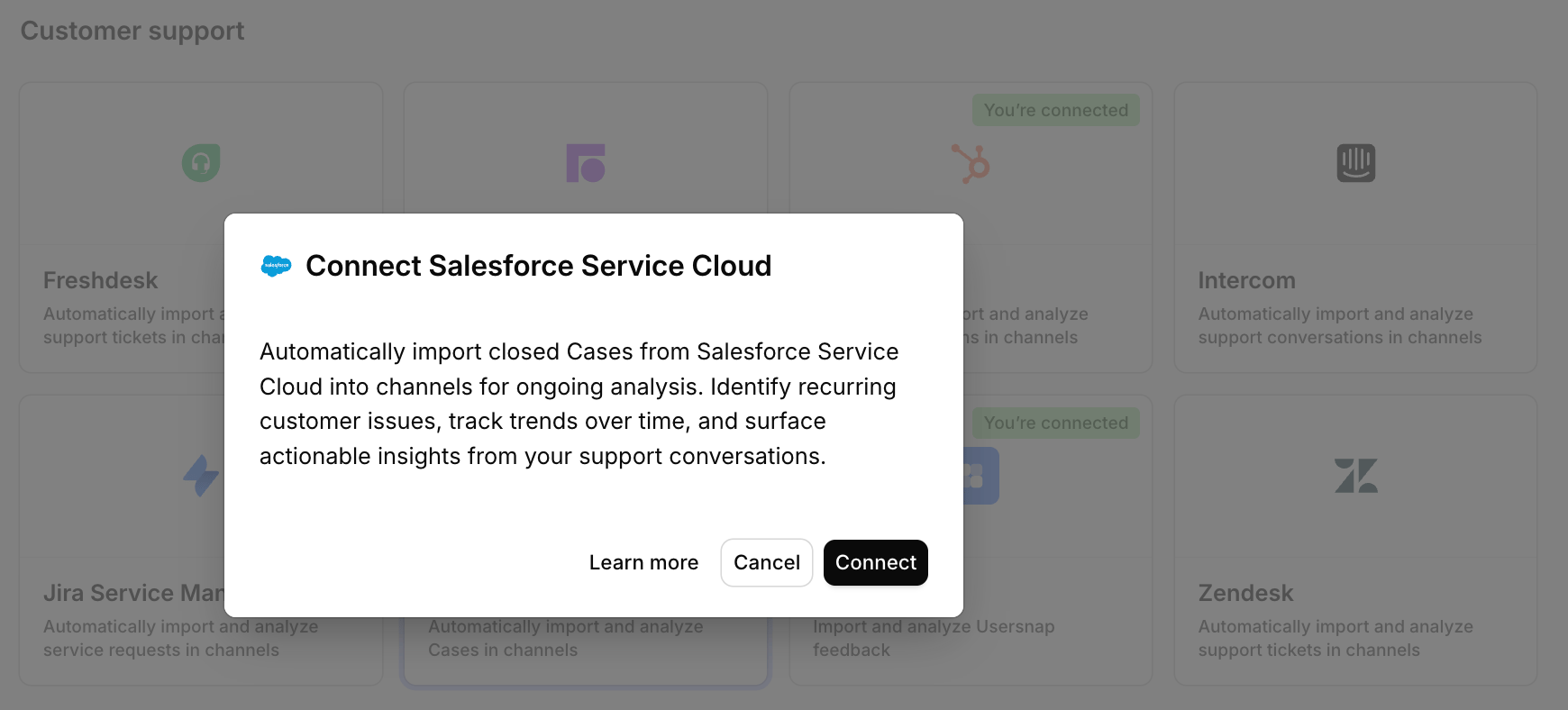
Open the Connect data source modal
In Dovetail, open the Connect data source modal and select
Salesforce Service Cloud.2
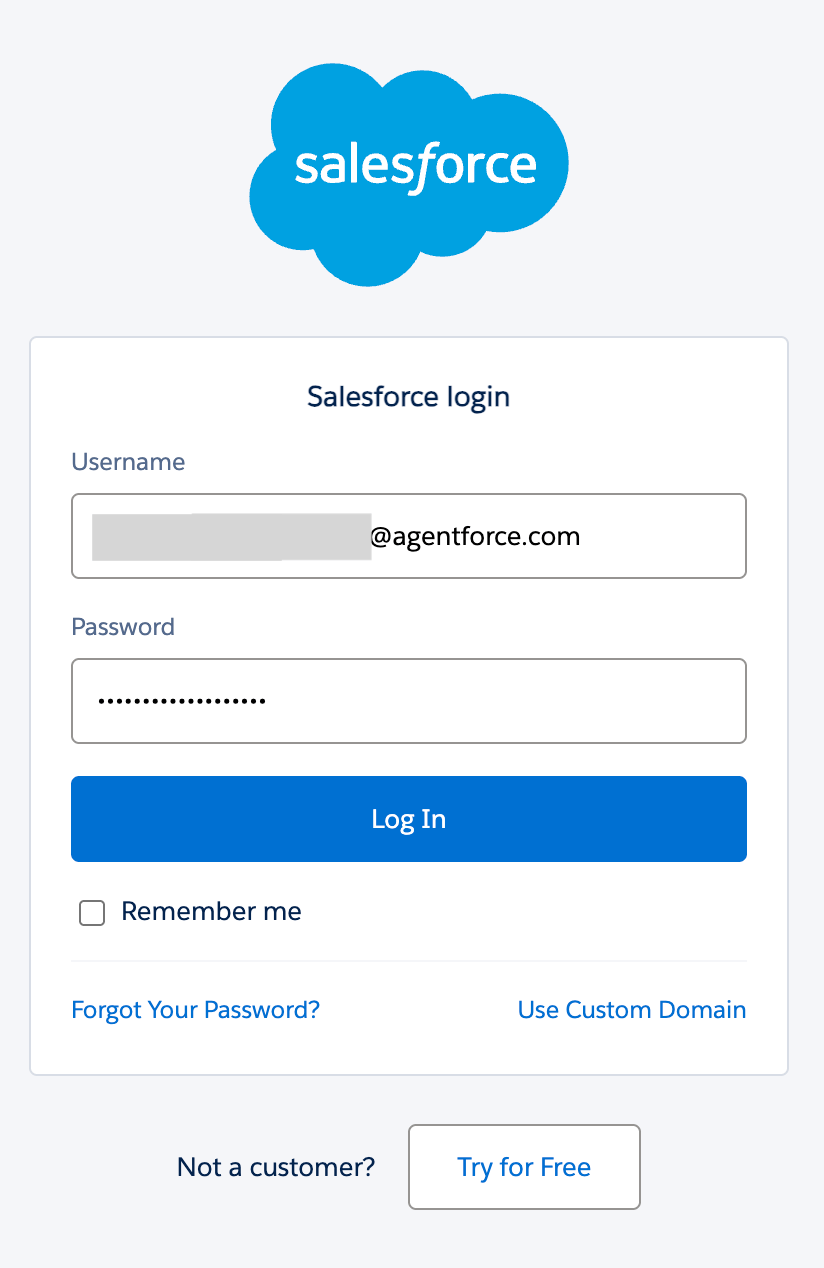
Authorize with Salesforce
You’ll be redirected to Salesforce to log in and approve the requested permissions. If you’re already logged in, this happens in a single click.
3
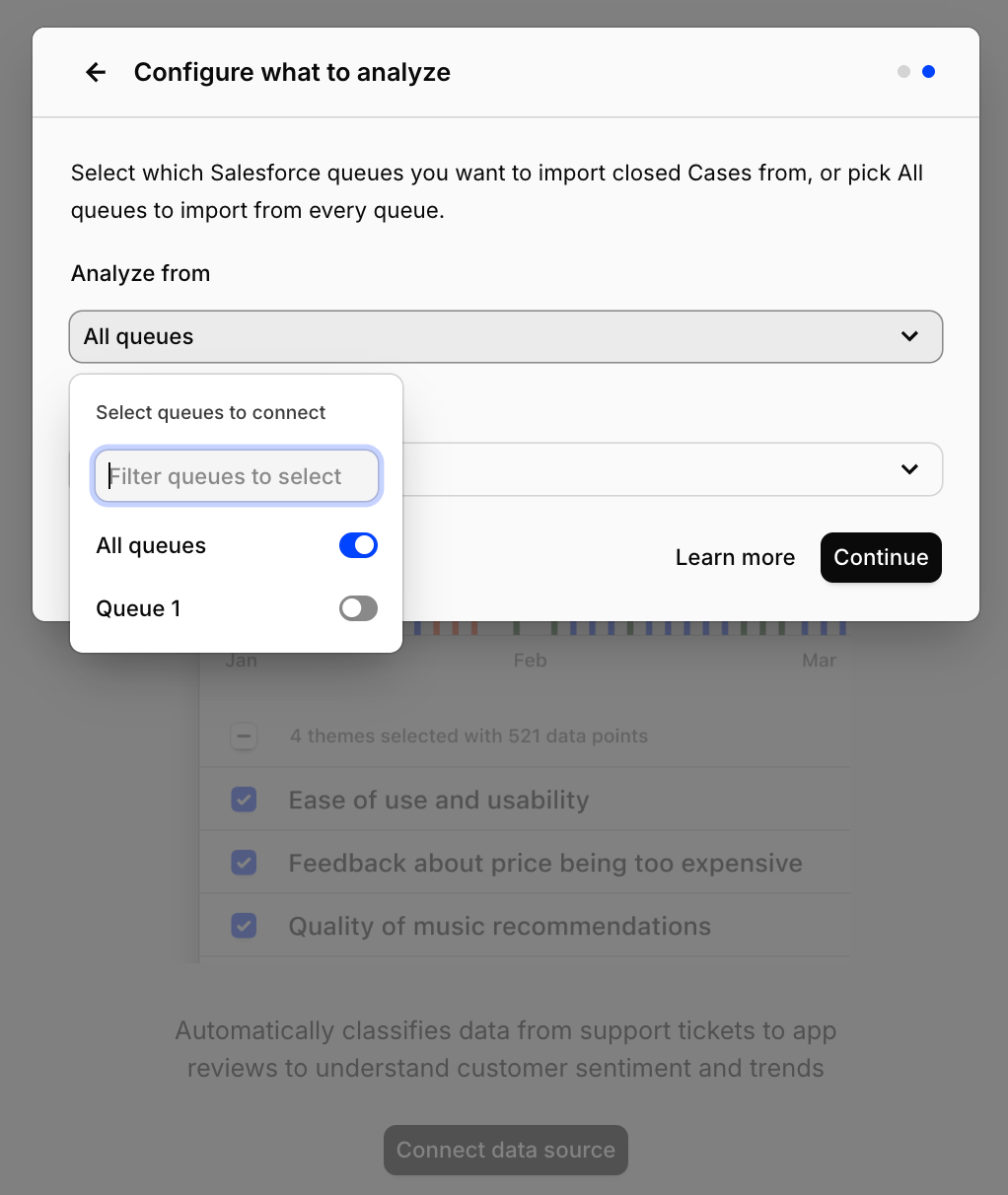
Pick the queues to import from
Back in Dovetail, pick the queues you want to import Cases from — or select
All queues to import from every queue you have access to. You can pick as many specific queues as you like.4
Pick a backfill window
Choose how far back to backfill existing Cases:
Last 7 days, Last 30 days, Last 90 days, or Last 6 months.5
Confirm setup
Confirm setup and select
Finish.- Connect data source
- Configure import
Authentication and permissions
Dovetail uses OAuth 2.0 againsthttps://login.salesforce.com with two scopes:
api— lets Dovetail runSELECTqueries against the Case, EmailMessage, and Group (queue) objects via the Salesforce REST API.refresh_token— lets Dovetail keep the connection alive without you re-authorizing on every sync.
SELECT queries and never writes back to Salesforce.
The authorizing user’s permissions cap what Dovetail can see. If a Case sits in a queue the user can’t access, it won’t be imported even if you tick “All queues” in Dovetail.
Configuration in detail
Picking queues
Dovetail fetches every queue in your org and shows them in the picker. You have two ways to scope what comes in:- All queues — Dovetail imports closed Cases from every queue the authorizing user can see. Cases assigned to individual users (not queues) aren’t included.
- Specific queues — Dovetail filters on
OwnerId IN (...)for the queues you select. You cal select any number of queues.
Tier 1 Support and Billing queues, Dovetail imports every closed Case whose current owner is one of those two queues. Cases owned by an individual support agent — even if they were once in those queues — aren’t pulled.
What gets imported
Each closed Case becomes one Channels data point, with the full email thread attached as the conversation.Conversation content
Dovetail joins each Case to itsEmailMessage records, ordered by MessageDate ASC, and lays them out as a multi-turn conversation. Each message carries the sender’s address and name, whether it was inbound or outbound, and the message timestamp. If a Case has no email thread but has a Description, the description is used as the conversation content instead.
Case metadata
Attached as fields on the data point:Participant identification
The first incoming email’sFromAddress and FromName are used to identify the customer on the data point. If no incoming email exists, Dovetail falls back to the Case’s ContactEmail and Contact.Name.
Not imported
- Open or in-progress Cases. Only
Status = 'Closed'Cases sync; reopened Cases will resync once they close again. - CaseComments. Internal team notes posted as CaseComments aren’t pulled — Dovetail only reads the email thread.
- Chatter posts, Tasks, Events. Not included.
- Attachments. Email attachments and Case attachments aren’t pulled.
- Custom fields. Only the standard Case fields listed above are imported. Reach out if you need a specific custom field.
- Cases the authorizing user can’t see. Salesforce sharing rules apply.
Sync behavior
- Backfill window. When you first connect, Dovetail imports closed Cases whose
SystemModstampfalls within the period you selected. - Ongoing sync. Dovetail tracks the highest
SystemModstampit has seen and pulls anything newer on each sync — so newly-closed Cases and any Cases that get re-saved are picked up. - Pagination. Cases are fetched 200 at a time and Dovetail keeps paginating until everything in the window is in.
- API version. Salesforce REST API v59.0.
Troubleshooting
OAuth redirects me to a “this app isn’t installed” screen. Your Salesforce admin may have restricted which Connected Apps users can install. Ask them to allow access to the Dovetail Connected App. Authentication succeeds, but no Cases import. The most common causes:- The authorizing user doesn’t have Read access on the
CaseorEmailMessageobject. Check their profile and permission sets. - The selected queues exist but contain no closed Cases in the backfill window.
- The authorizing user isn’t a member of the queues you selected and Salesforce sharing rules hide those Cases from them.
OwnerId IN (...) against queue IDs, so user-owned Cases won’t match. Also confirm the Cases in question are actually Status = 'Closed'.
I have a sandbox org. Sandbox orgs aren’t supported — the integration only authenticates against login.salesforce.com (production). Connect from your production org or get in touch if sandbox support is a blocker for you.
Salesforce returned a rate-limit error. Dovetail backs off and retries automatically. If your org’s daily API call limit is being exhausted by other integrations, the sync may be delayed. Contact your Salesforce admin to review API consumption.
Disconnect or delete the Salesforce Service Cloud source
There are two distinct actions on a Channels source. Disconnect. Stops Dovetail from ingesting any new Cases from this source. Anything already imported stays in the Channel. To disconnect, open the Channel, go to the sources list, click••• on the Salesforce Service Cloud source, and select Disconnect. You’ll see:
Are you sure you want to disconnect [source name] from [Channel name]? This will immediately stop the Channel from ingesting any new data. Any data already imported from this source will remain in the Channel.Delete. Removes the source and deletes every data point that was imported from it. This is permanent. To delete, click
••• on the Salesforce Service Cloud source and select Delete. You’ll see:
Are you sure you want to delete [source name] from [Channel name]? This will delete all associated data points. This is permanent and cannot be undone.To revoke access entirely, ask your Salesforce admin to remove the Dovetail Connected App from your org under Setup → Connected Apps OAuth Usage. Disconnecting in Dovetail stops the sync; revoking in Salesforce ensures the refresh token can no longer be used.