

Overview
The Usersnap integration imports feedback from the Usersnap projects you choose. Each feedback item comes with the text people entered in your feedback form, their other form inputs, and the feedback’s labels, status, and priority. Data points link back to the feedback in Usersnap. The integration connects with a JWT ID and JWT Secret from Usersnap. Each project you select becomes a dataset.
A workspace admin creates the Usersnap source once for the whole workspace, and channels then add its projects. Learn more about Sources →
Before you start
In Dovetail
- A workspace admin creates the source. Other users can request it.
- The credentials you connect with are shared by the whole workspace. See Shared credentials for how to choose an account.
In Usersnap
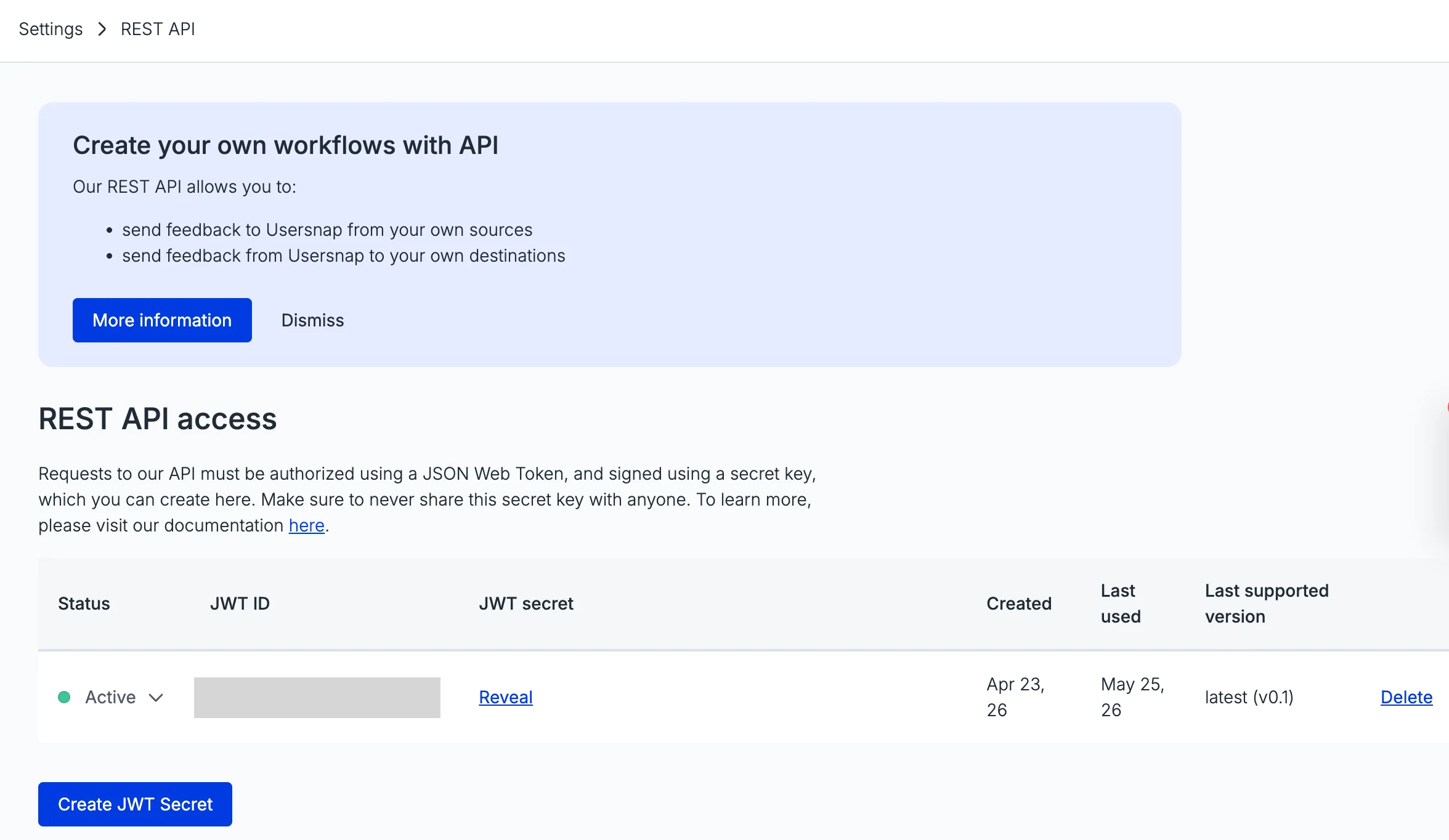
- A JWT ID and JWT Secret. You create these in the REST API section of your Usersnap settings. REST API access is available only on some Usersnap plans.
- Access to every project you want to import. The project picker lists only the projects the credentials can access.
- One set of credentials per source. A Usersnap source connects with one JWT ID and JWT Secret. If your workspace already has a Usersnap source, add projects to it instead of creating another. See Create a source.
Create the Usersnap source
1
Open Sources and select Usersnap
In the sidebar, select Sources, then select Usersnap.
2
Connect Usersnap
In JWT ID and JWT Secret, paste the values from Usersnap, then select
Continue.3
Choose projects and an import period
In Select projects to import from, select each project you want, or select
All projects. Then choose an Import period. See Import period.4
Choose who can use the source
Choose who can use the source, then select
Next. See Create a source.5
Create the source
Choose whether to auto-redact sensitive information in the source’s data, then select
Create source. The first import starts right away. See Redact data from sources.Authentication and permissions
Usersnap connects with a JWT ID and JWT Secret. Dovetail only reads from Usersnap: it lists the projects the credentials can access and reads their feedback. It doesn’t change anything in Usersnap. The JWT ID and JWT Secret are stored once for the whole workspace. To switch the source to new credentials, reconnect it from Connected account and enter the new JWT ID and JWT Secret. See Change the connected account.Datasets
Each Usersnap project you select becomes its own dataset and syncs on its own, so a problem with one project doesn’t stop the others. A channel can add some or all of the source’s projects. Each data point records its project in the Project field, so a channel that uses several projects can filter by project. To add more projects later, open the source and selectAdd project. See Add datasets.
What gets imported
Each Usersnap feedback item becomes one data point. Each text input the person filled in on the feedback form becomes one part of the data point’s text, and this is the text Dovetail analyzes. The rest of the feedback comes across as fields you can filter by.Always imported
Imported when present
To rename these fields or change their types, see Rename fields and change field types.
Not imported
- Annotated screenshots. The screenshot image isn’t imported. To see it, open the feedback in Usersnap.
- Assignee. Who the feedback is assigned to in Usersnap isn’t imported.
- Updates after import. A later change in Usersnap, such as a new status, priority, or label, doesn’t update the data point.
Sync behavior
The first import starts when the source is created. After that, the source syncs about every hour. See Manage a source.- Import period. The import period applies to when feedback was submitted in Usersnap.
- Ongoing sync. Each sync imports the feedback submitted since the newest feedback Dovetail has already imported. Older feedback isn’t requested again. See Not imported.
Troubleshooting
Dovetail doesn’t accept the JWT ID and JWT Secret. Check that you pasted each value in full into the right field, and that the JWT secret is still active in Usersnap. If it was deleted, create a new one and use its values. A project isn’t in the picker. The picker lists only the projects the credentials can access. Check in Usersnap that the project exists and that the credentials have access to it. The source shows “Usersnap rejected the request for one or more projects’ feedback.” Check that the connected Usersnap user is still a member of the project, and restore that access in Usersnap. The source’s other projects keep syncing in the meantime. See Source statuses. The source shows “Some Usersnap projects can’t be found — they may have been deleted, or the API key was rotated.” If a project was deleted in Usersnap, Dovetail can’t import more feedback from it, and feedback already imported stays in Dovetail. If the project still exists, check in Usersnap that the JWT secret the source uses is still active. If the secret was deleted or replaced, reconnect the source with a new JWT ID and JWT Secret. See Authentication and permissions. Feedback is in Usersnap but not in Dovetail. Likely causes:- The feedback was submitted before the source’s import period. See Get older data.
- The feedback’s project isn’t in the source, or the channel doesn’t include that project. See Missing or outdated data.
- The credentials lost access to the project in Usersnap.
Revoke access in Usersnap
To revoke Dovetail’s access on the Usersnap side, delete the JWT secret the source uses, in the Usersnap settings where you created it. The source then stops syncing. Feedback already imported stays in Dovetail. To pause or delete the source in Dovetail, see Manage a source. To take its data out of one channel, see Channel setup.Related guides
Sources
What a source is, and how its data reaches channels.
Channel setup
Create a channel from your sources and choose its datasets.
Manage a source
Check a source’s status, sync it, pause it, reconnect it, or add datasets.
Voice of customer
Centralize feedback, make sense of it, and close the loop.