

Overview
The ServiceNow CSM integration imports Customer Service Management (CSM) cases from your ServiceNow instance, with each case’s comment thread as its conversation. Cases are imported in any state, and Dovetail picks up changes when a case is updated. Each assignment group you select becomes a dataset.
A workspace admin creates the ServiceNow CSM source once for the whole workspace, and channels then add its assignment groups. Learn more about Sources →
Unlike most Dovetail integrations, ServiceNow CSM connects through a private OAuth app that you create inside your own ServiceNow instance. ServiceNow’s OAuth is per instance, so there’s no shared app that Dovetail can provide. Your ServiceNow admin registers the app, and the workspace admin who creates the source enters its client ID, client secret, and instance subdomain in Dovetail.
If your workspace doesn’t have Sources, see Connect a tool without Sources. Complete Before you start and Step 1 on this page first.
Before you start
In Dovetail
- A workspace admin creates the source. Other users can request it.
- The credentials you connect with are shared by the whole workspace. See Shared credentials for how to choose an account.
In ServiceNow
- A ServiceNow admin who can create an OAuth Application Registry entry in your instance. See Step 1 below.
- Customer Service Management (CSM) in use. The integration reads cases from the Customer Service plugin (
com.sn_customerservice). If you already manage customer cases in ServiceNow, this plugin is active on your instance. - A ServiceNow account with read access to the CSM tables:
sn_customerservice_case,sys_journal_field,customer_contact,customer_account, andsys_user. The workspace admin who creates the source signs in to ServiceNow with this account during setup. The source can import only the cases this account can read, so check that its roles cover the assignment groups you plan to import.
Step 1 — Create an OAuth app in ServiceNow
Your ServiceNow admin does this once, inside your ServiceNow instance, and shares the client ID, client secret, and instance subdomain with the Dovetail workspace admin who creates the source.1
Open the Application Registry
In ServiceNow, go to System OAuth → Application Registry and select New.
2
Choose the external client option
Select Create an OAuth API endpoint for external clients.
3
Name the app and set the redirect URL
Give it a name, for example Set the scope restriction to Broadly scoped. Leave the other fields at their defaults unless your organization requires otherwise, and select Submit.
Dovetail. In the Redirect URL field, enter Dovetail’s callback URL exactly:4
Copy the client ID and client secret
Reopen the app you just created. ServiceNow generates a Client ID and Client Secret. Copy both. You enter them in Dovetail when you create the source.
5
Note your instance subdomain
Your instance subdomain is the first part of your ServiceNow URL, for example
dev123456 in https://dev123456.service-now.com. You need it when you create the source.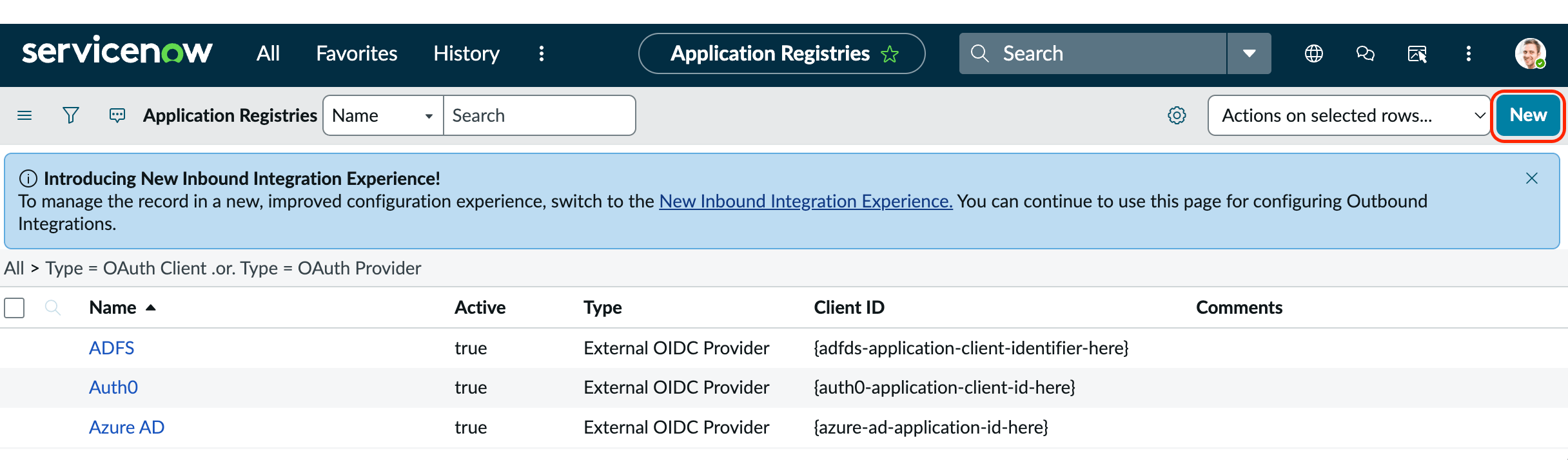
In ServiceNow, create a new OAuth application from System OAuth → Application Registry → New
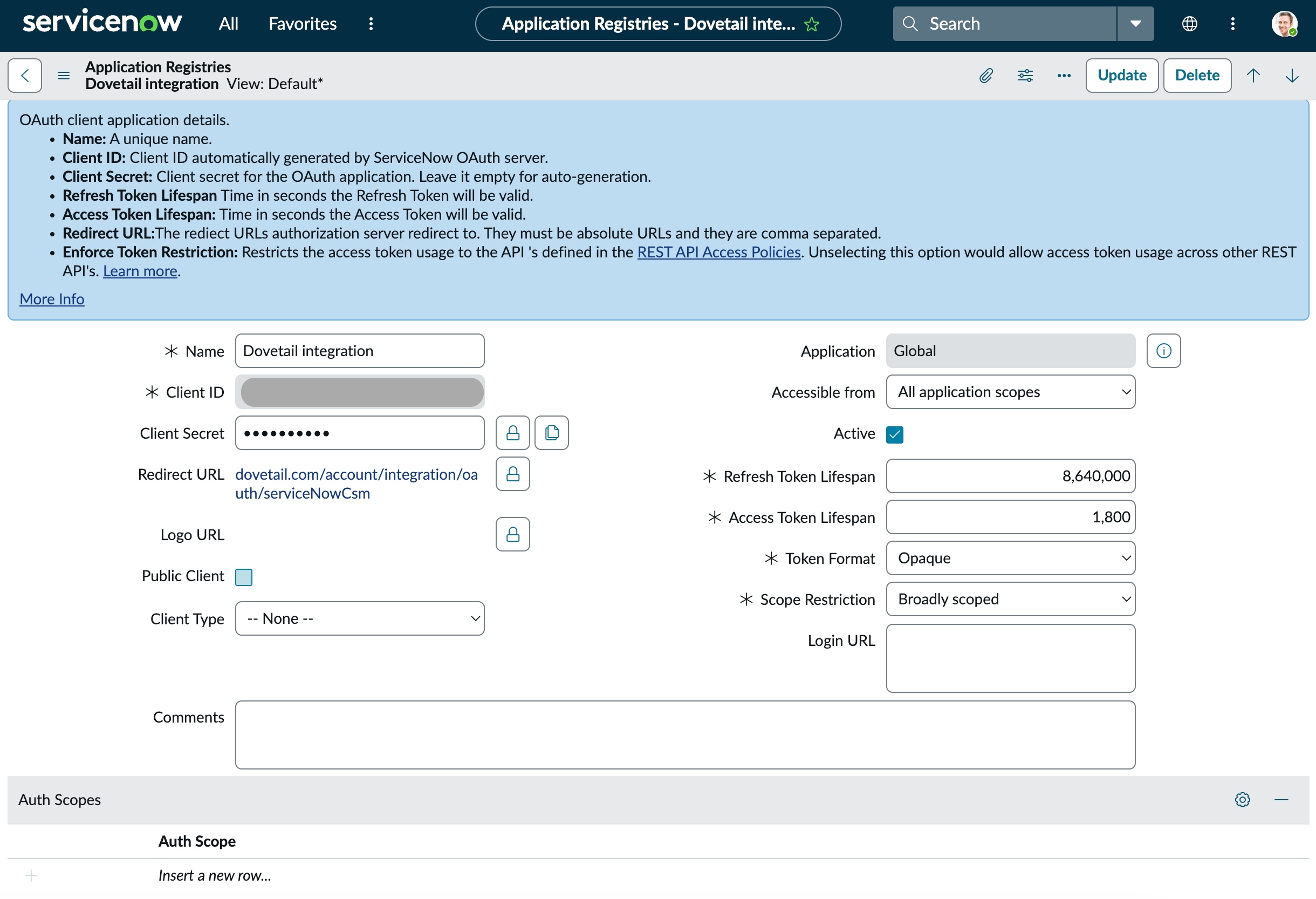
Set the redirect URL and the scope restriction
Create the ServiceNow CSM source
1
Open Sources and select ServiceNow CSM
In the sidebar, select Sources, then select ServiceNow CSM.
2
Connect ServiceNow CSM
Enter the three values from Step 1:
- Instance subdomain — the subdomain only, for example
dev123456 - Client ID — from the ServiceNow OAuth app
- Client secret — from the ServiceNow OAuth app
Save and continue, then select Connect. You’re taken to ServiceNow to sign in and approve access. ServiceNow checks the client ID and client secret during sign-in, so a mistake in either shows up at that point.The credentials are saved once for the whole workspace. If they’re already saved, the dialog skips the form and shows only Connect.3
Choose assignment groups and an import period
In Select assignment groups, choose one or more assignment groups, or choose
All groups. Then choose an Import period. See Import period.4
Choose who can use the source
Choose who can use the source, then select
Next. See Create a source.5
Create the source
Choose whether to auto-redact sensitive information in the source’s data, then select
Create source. The first import starts right away. See Redact data from sources.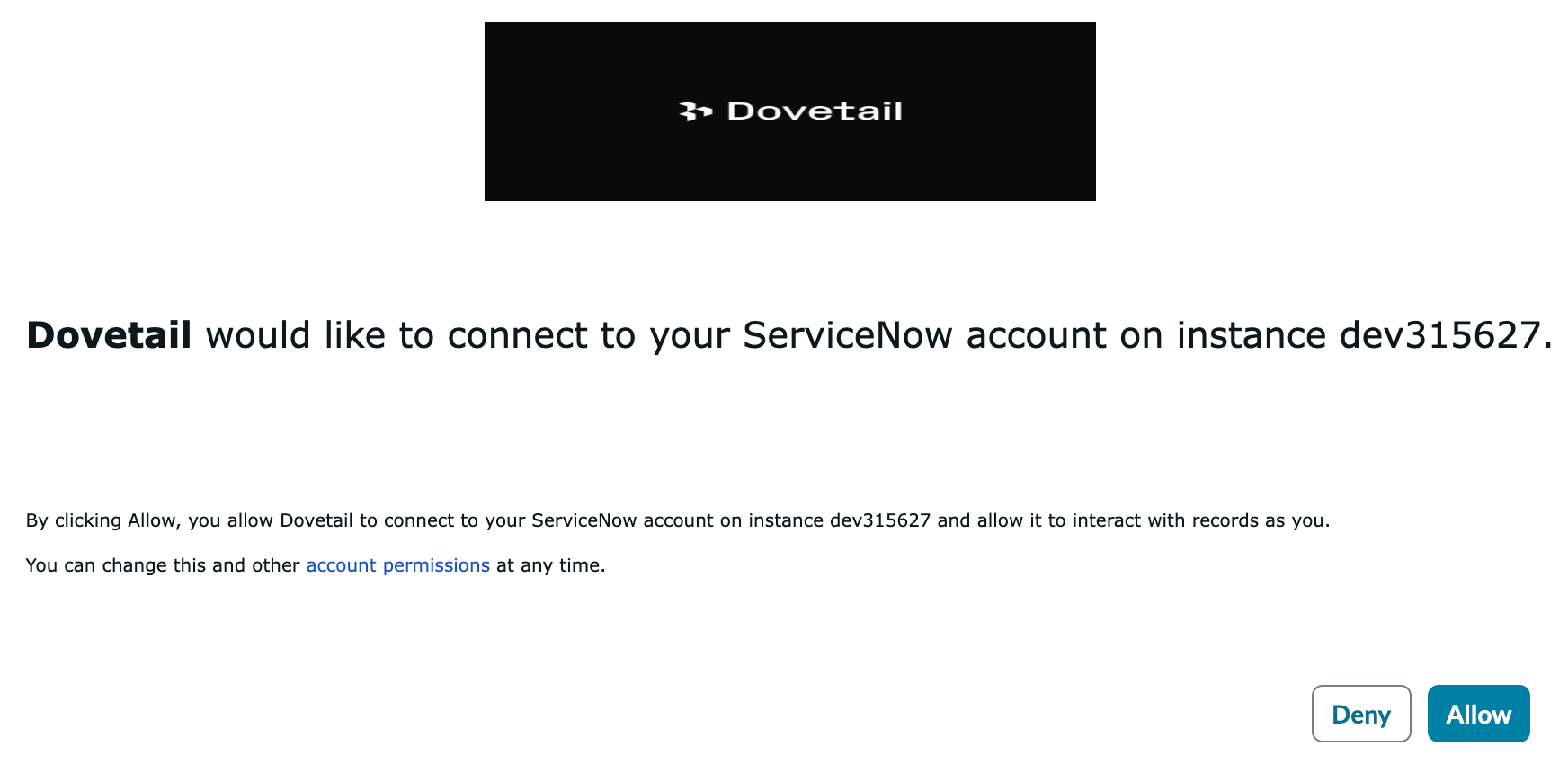
Authentication and permissions
ServiceNow CSM connects with OAuth 2.0, using the OAuth app you registered in Step 1. The setup has two parts, and the workspace admin who creates the source completes both:- App credentials. The instance subdomain, client ID, and client secret are stored once for the whole workspace.
- Sign-in. The admin signs in to ServiceNow and approves access. Dovetail requests the
useraccountscope, so it can read what the signed-in ServiceNow account can read, subject to ServiceNow’s access controls (ACLs).
Datasets
Each assignment group you select becomes its own dataset and syncs on its own, so a problem with one group doesn’t stop the others. Cases with no assignment group aren’t imported. A channel can add some or all of the source’s assignment groups. To add more assignment groups later, open the source and selectAdd assignment group. See Add datasets.
What gets imported
Each ServiceNow CSM case becomes one data point, with the case’s comment thread as its conversation. Fields show ServiceNow’s display values, such as a priority’s label rather than its code.Always imported
Imported when present
Comments are shown oldest to newest, each with its time and author. If a case has no comments, its description is used instead. A case’s combined comment text is limited to 10,000 characters. When a thread is longer, Dovetail leaves out the oldest comments first.
Not imported
- Work notes and other internal-only journal fields.
- Attachments.
- Related records, such as tasks, incidents, or knowledge articles linked to the case.
- Other case fields, including custom fields.
- Contact email addresses, so data points from this source aren’t linked to Dovetail contacts.
- Cases with no assignment group.
Sync behavior
The first import starts when the source is created. After that, the source syncs about every hour. See Manage a source.- Import period. The import period applies to the date each case was last updated in ServiceNow (
sys_updated_on). Cases last updated before the start of the period aren’t imported. - Ongoing sync. Each sync imports cases created or updated since the previous sync, whatever their state.
Troubleshooting
ServiceNow shows an error when I sign in, or the sign-in window doesn’t complete. The most common cause is a mismatched Redirect URL. Confirm that the OAuth app in ServiceNow has the redirect URL set to exactlyhttps://dovetail.com/account/integration/oauth/serviceNowCsm, with no trailing slash or extra characters. Also confirm that the client ID and client secret saved in Dovetail match the ServiceNow app.
The credentials don’t save. Check that Instance subdomain contains only the subdomain, such as dev123456, and not the full URL.
The source shows “Your ServiceNow instance has revoked the OAuth app’s access to CSM cases or sys_journal_field.” Check the OAuth Application Registry entry in ServiceNow, and the roles of the account that connected the source. Then select Sync now. If the source needs reconnecting, see Reconnect a source.
The source shows “The ServiceNow instance subdomain is no longer reachable.” Check that your ServiceNow instance is online, and that the instance subdomain saved in Dovetail matches the live instance.
An assignment group is missing from the picker. Dovetail lists only assignment groups that own at least one CSM case.
No cases import, or a case is missing from a channel. Check that the connecting account can read the tables listed in Before you start, that the case has an assignment group that’s in the channel, that it was updated within the import period, and that it has comments or a description. See Missing or outdated data.
The source stopped syncing. If the OAuth app was deleted, or its client secret was changed in ServiceNow, the source can’t sync. Check the source’s status on the Sources page.
ServiceNow CSM isn’t available when I set up a channel. See Troubleshoot sources.
Revoke access in ServiceNow
To revoke Dovetail’s access, delete or deactivate the Dovetail OAuth app in your ServiceNow instance under System OAuth → Application Registry. To pause or delete the source in Dovetail, see Manage a source. To take its data out of one channel, see Channel setup.Related guides
Sources
What a source is, and how its data reaches channels.
Channel setup
Add the source’s assignment groups to a channel, or remove them.
Manage a source
Check a source’s status, sync it, pause it, or add assignment groups.
Voice of customer
Bring support cases together with other customer feedback in Channels.