

Overview
The Sprig integration imports survey responses from the in-progress and completed Sprig surveys you select. Dovetail analyzes the open-text answers, and brings NPS, rating, and choice answers across as fields you can filter by. Each survey you select becomes a dataset.
A workspace admin creates the Sprig source once for the whole workspace, and channels then add its surveys. Learn more about Sources →
Before you start
In Dovetail
- A workspace admin creates the source. Other users can request it.
- The credentials you connect with are shared by the whole workspace. See Shared credentials for how to choose an account.
In Sprig
- Someone with admin access in Sprig. They copy the API key for Dovetail. They don’t have to be the workspace admin who creates the source.
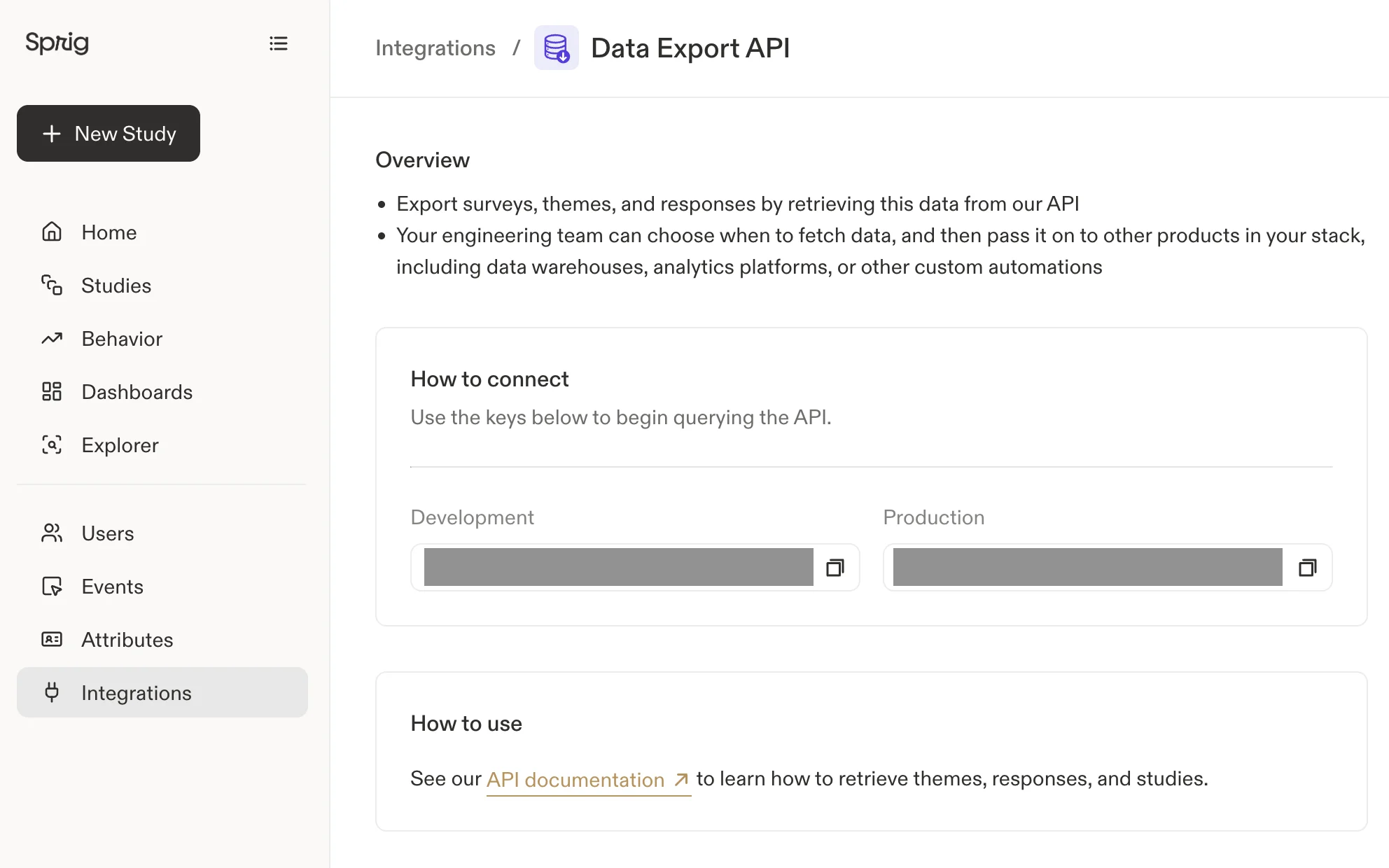
- Your Sprig API key. You can find it in your Sprig dashboard under Settings. Sprig has separate Development and Production keys. Use the key for the environment whose surveys you want to import.
- Identified respondents, if you want responses linked to contacts. Dovetail can link a response to a contact only when the respondent is an identified Sprig user with an email address. See Customer emails.
Create the Sprig source
1
Open Sources and select Sprig
In the sidebar, select Sources, then select Sprig.
2
Connect Sprig
Paste your key into the API key field, then select
Continue.3
Choose surveys and an import period
In Select surveys, choose one or more surveys. You don’t choose questions: Dovetail analyzes the open-text answers in each survey. Then choose an Import period. See Import period.
4
Choose who can use the source
Choose who can use the source, then select
Next. See Create a source.5
Create the source
Choose whether to auto-redact sensitive information in the source’s data, then select
Create source. The first import starts right away. See Redact data from sources.Authentication and permissions
Sprig connects with an API key. Dovetail uses the key only to read your surveys, their responses, and respondents’ email addresses for contact linking. If the key can’t read Sprig users, responses still import, but they aren’t linked to contacts. Dovetail doesn’t write anything to Sprig. The API key is stored once for the whole workspace. To change the account or credentials, see Reconnect a source.Datasets
Each survey you select becomes its own dataset and syncs on its own, so a problem with one survey doesn’t stop the others. A channel can add some or all of the source’s surveys. Select surveys lists the surveys the API key can see whose status isIn progress or Completed.
To add more surveys later, open the source and select Add survey. See Add datasets.
What gets imported
Each survey submission becomes one data point, named after the survey. The respondent’s open-text answers become the data point’s conversation, as question-and-answer pairs, and the other details become fields you can filter by. A submission with only score or choice answers, such as an NPS rating with no comment, still becomes a data point, but has no text for Dovetail to analyze.Always imported
Imported when present
Not imported
- Submissions where every answer is empty.
- Respondent names. Sprig doesn’t provide one to Dovetail.
- Sprig user attributes other than the email address, custom metadata, and the page URL the survey was shown on.
- Sprig’s own analysis of your responses.
Customer emails
This data includes customer email addresses, so Dovetail can link data points to contacts. See Create contacts from source data. Sprig’s response data doesn’t include email addresses, so Dovetail looks up each respondent’s email address in Sprig. For a response to carry an email address:- The survey is shown to identified visitors, so each response is tied to a Sprig user ID.
- The user has an email address set in Sprig.
- The API key can read Sprig users.
Scores and field types
Dovetail reads each question’s type from Sprig, and turns score and choice questions into fields named after the question:- NPS questions become NPS fields.
- Rating scale questions become Rating fields, whatever their scale. Sprig doesn’t send a rating scale’s range, so Dovetail can’t tell a CSAT question from any other rating question.
- Choice questions become Single select fields when respondents pick one option, and Multi select fields when they can pick several. An answer that matches none of the options, such as an “Other” entry, stays in the conversation as text.
Sync behavior
The first import starts when the source is created. After that, the source syncs about every hour. See Manage a source.- Import period. The import period applies to when each response was created in Sprig. Responses created before the start of the period aren’t imported.
- Ongoing sync. Each sync imports responses created since the latest response already imported.
Troubleshooting
Dovetail says my API key is invalid. Check that you copied the whole key from your Sprig dashboard. If you’re not sure, generate a new key in Sprig and use that. A survey shows “Your Sprig API key was rejected.” Sprig refused Dovetail’s request for that survey, so the survey stops syncing. Check in Sprig that the API key is still active and can see the survey, then sync the source again. See Source statuses. The source needs to be reconnected. Sprig no longer accepts the API key. Generate a new key in Sprig, then reconnect the source with it. See Reconnect a source. My survey doesn’t show up in Select surveys. Dovetail lists only surveys with statusIn progress or Completed. Launch the survey in Sprig, then open the list again.
My survey has responses in Sprig, but nothing imported. Check that:
- The responses were created within the import period. See Get older data.
- The channel includes the survey’s dataset. See Missing or outdated data.
Revoke access in Sprig
Pausing or deleting the source in Dovetail doesn’t revoke the API key in Sprig. To cut off Dovetail’s access, delete the API key in Sprig. After you delete it, the source can’t import new responses, and any other tool that uses the same key loses access too. To pause or delete the source in Dovetail, see Manage a source. To take its data out of one channel, see Channel setup.Related guides
Sources
What a source is, and how its data reaches channels.
Channel setup
Add the source’s surveys to a channel, or remove them.
Manage a source
Check a source’s status, sync it, pause it, or add surveys.
Dashboards
Chart NPS scores from your Sprig surveys.