

.png?fit=max&auto=format&n=ccGVOITNN8waXFod&q=85&s=2edb5323b100e67a4f0d634d566ba2f4)
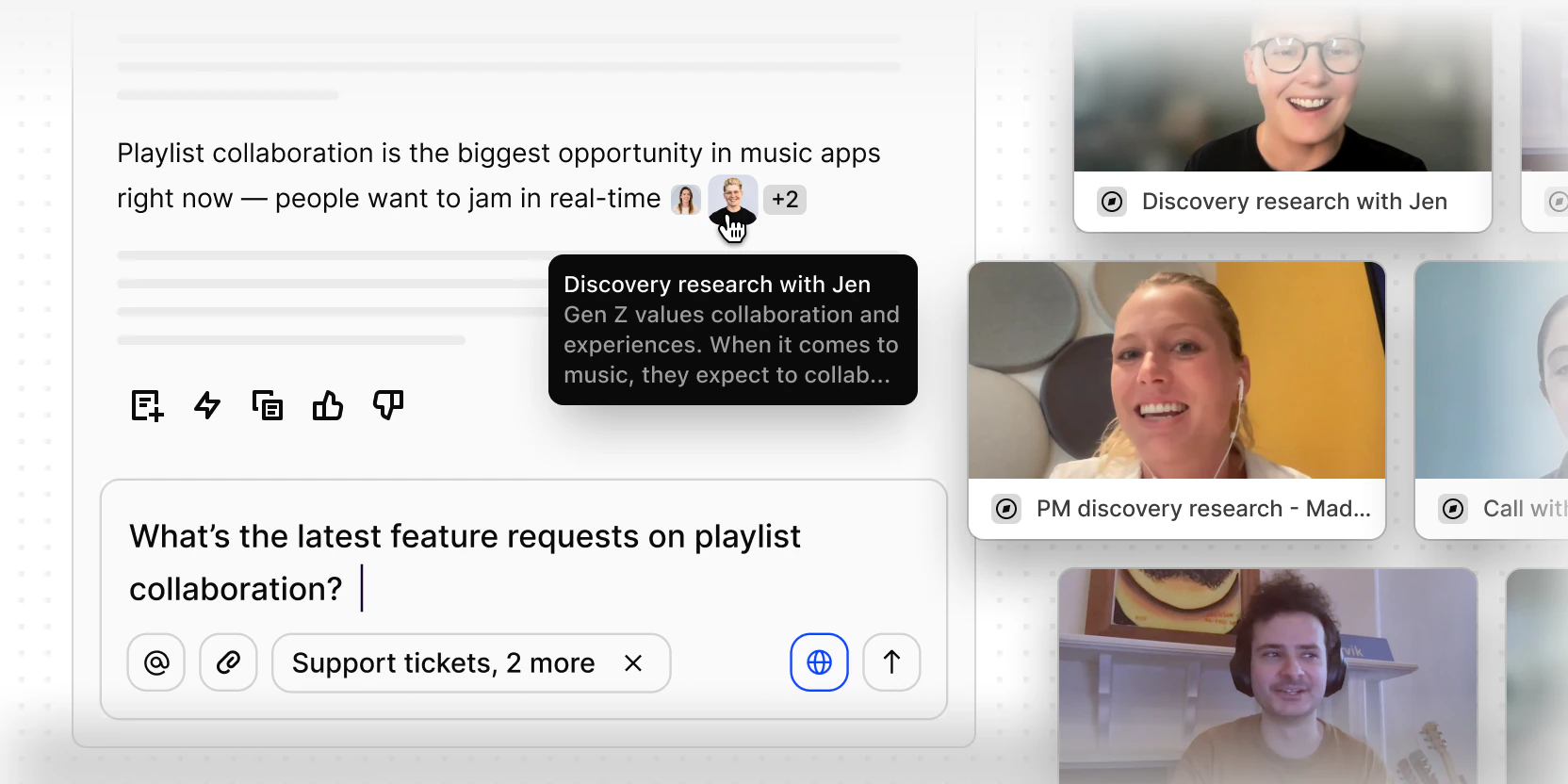
How Chat works
Chat auto-applies context from wherever you are in Dovetail, so you’re always asking the right question at the right scope.- Focused analysis: Ask about a specific transcript — including OCR’d documents like academic papers — or a single feedback note.
- Project synthesis: At project level, ask broader questions across all the data in that project: a meta-study, a round of interviews, a collection of sales calls.
- Workspace overview: Zoom out further and synthesize across projects — different product areas, research themes, or feedback sources.
Start a new chat
Open Chat from the sidebar, or press ⌘ J (Mac) / Ctrl J (Windows) from anywhere in your workspace. You can switch to full-page Chat for a larger workspace when you want more room for deeper analysis, then toggle back to the corner view whenever you need. Ask anything — from “How might I improve this conversation next time?” on a single customer interaction to “What are the main VoC themes this month?” at workspace level. The real power is conversational: ask follow-ups, push for nuance, challenge a point, or change direction entirely. Treat it like a dialogue with your research, not a search box.Web search
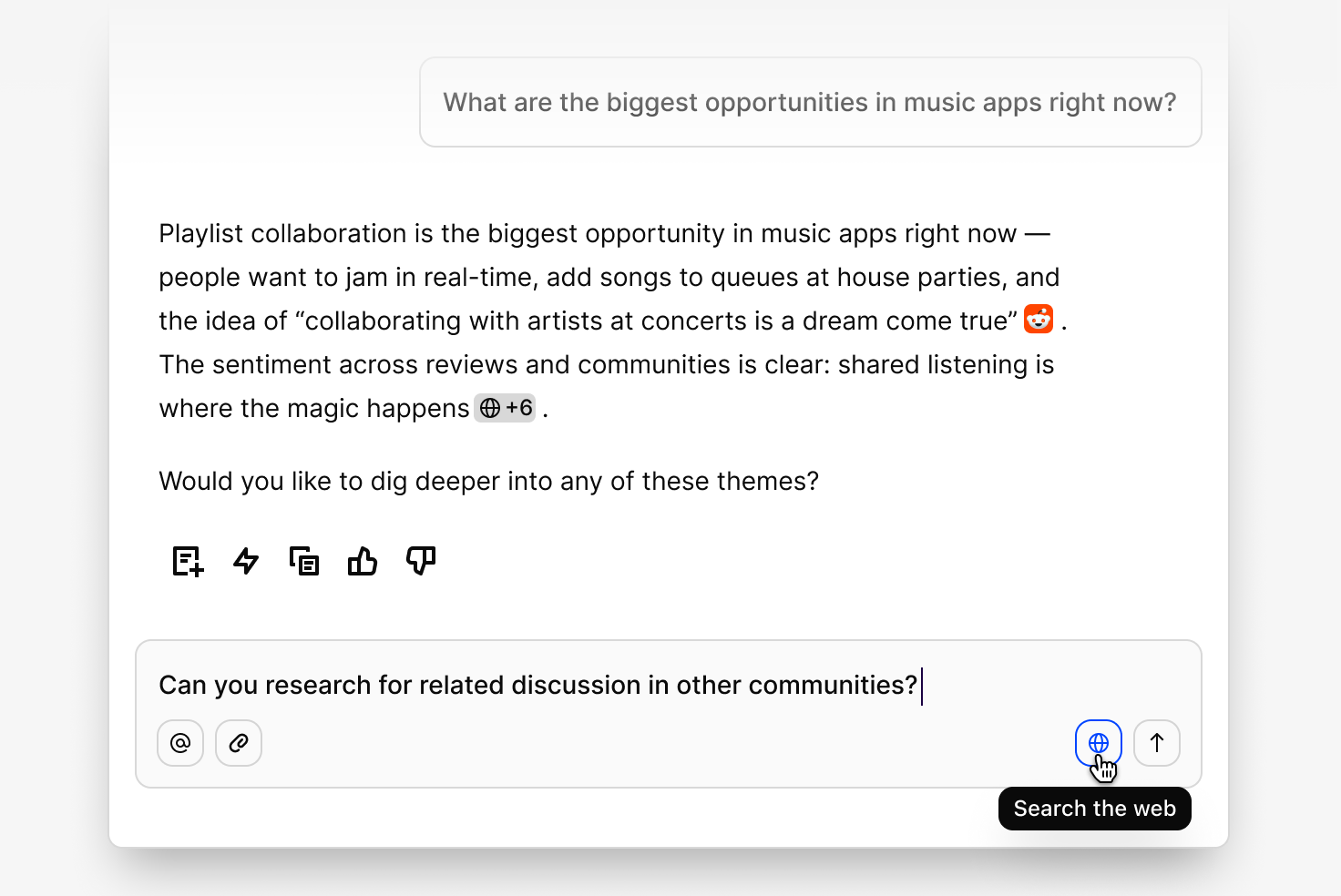
Customer signals don’t exist in isolation. Sometimes you need external context alongside your internal data — what competitors are shipping, how the market is shifting, or which trends explain a pattern you’re seeing. Web search lets you pull in external sources within a single Chat conversation, without leaving Dovetail. Ask Chat to look up a competitor’s latest product announcement, find industry benchmarks, or surface recent coverage tied to a trend in your data. How teams use this:- Competitor context — compare what your customers are saying with what competitors are shipping, in one place.
- External validation — support emerging themes with third-party sources and published benchmarks.
- Market signals — layer in industry or macro trends to strengthen your interpretation of internal data.
Rich media in Chat
Customer feedback isn’t just text — it’s video. Real moments, real expressions, real frustration and excitement. When Chat surfaces a relevant snippet from customer feedback, it renders the video directly in the conversation. You can watch it inline, right alongside the analysis. When multiple moments are relevant, they appear in a scrollable carousel so you can move through the evidence without losing your place. Each highlight is also downloadable, so you can bring customer moments into presentations or share them with stakeholders in one click. You’re not reading a summary of what a customer said. You’re watching them say it, without leaving the conversation.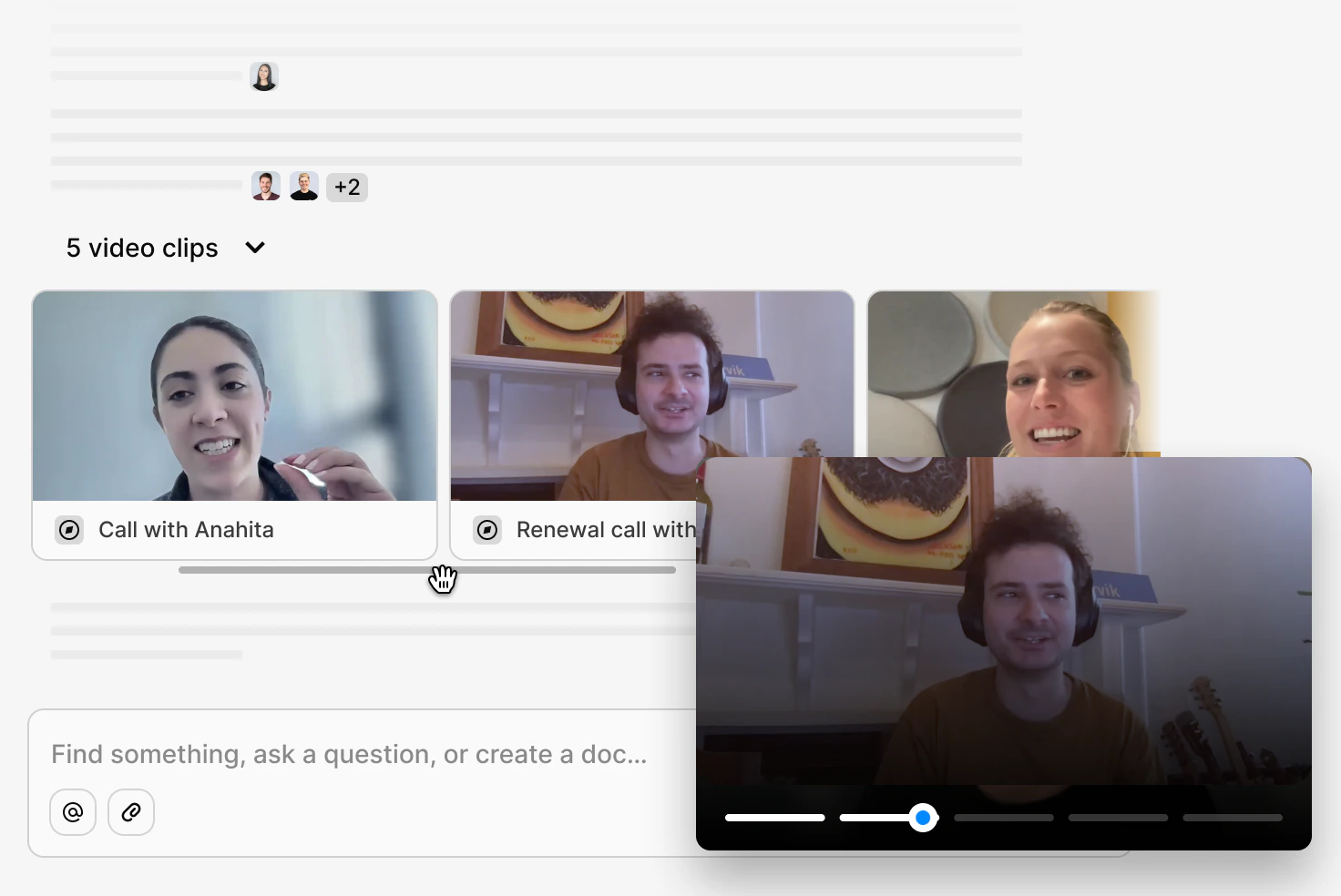
Multi-context: ask one question across multiple sources
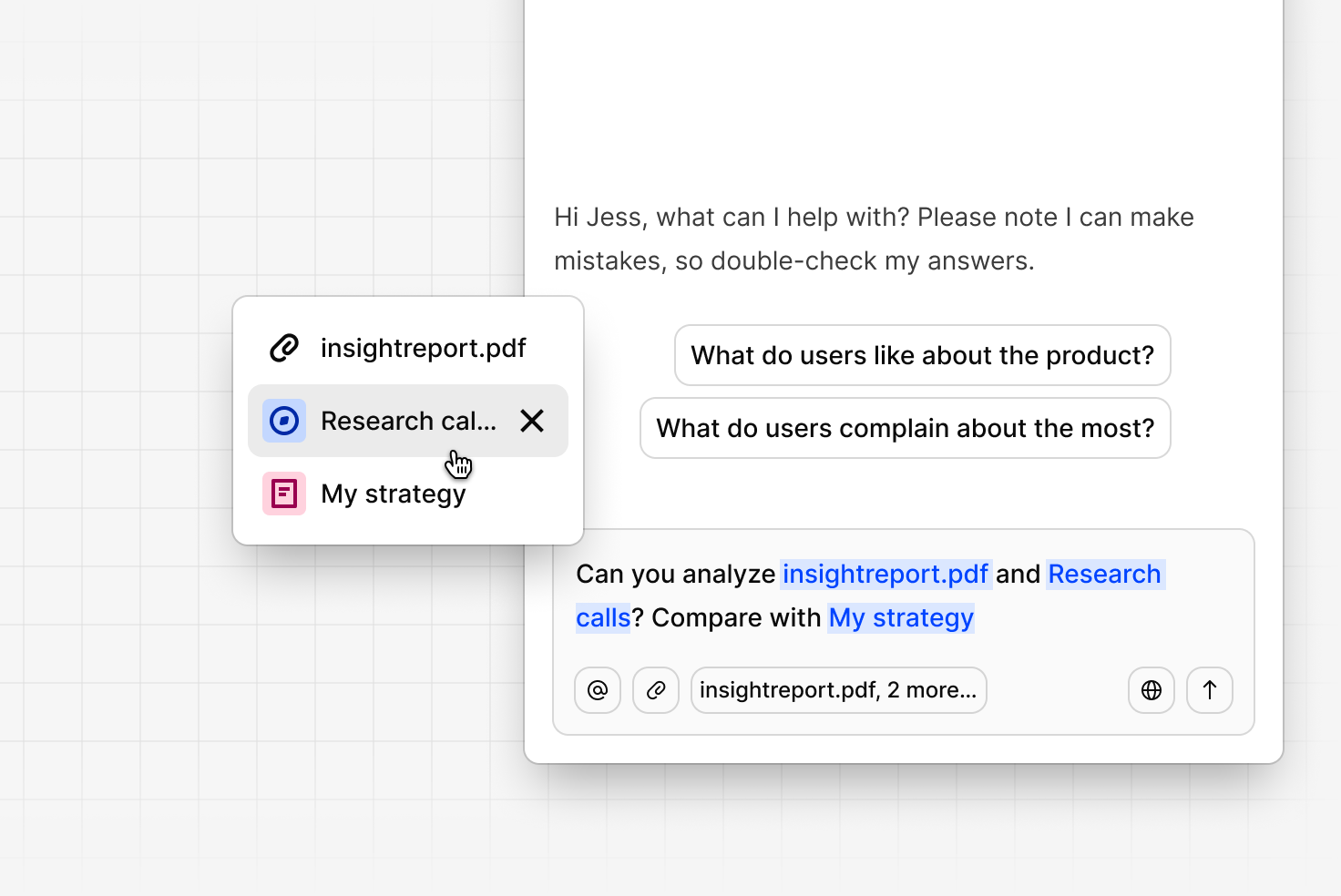
You can now @mention multiple sources in a single query — a project, a channel, a specific document, or any combination — and Chat will synthesize insights across all of them in one response, with citations linked back to each source. You can also narrow your scope within a project. Instead of querying an entire project, select specific calls or documents and ask targeted questions about just those inputs. How teams use this:- Cross-functional synthesis — combine perspectives from research, support, and sales to understand what’s changing and where to focus next.
- Focused analysis — isolate a handful of interviews or documents without noise from the rest of the project.
- Strategic context — pair internal research data with specific strategy documents for more informed answers.
View citations
Every answer is grounded in your data. Citations are interactive, with expandable source previews so you can verify exactly where information came from without leaving the conversation.Transparent thinking
Expand the Show thinking panel to see exactly how Chat arrived at an answer — which sources were scanned, how many interviews were read, what highlights and documents were generated, broken down step by step. Dynamic thinking states show real-time progress as Chat works through your question, so you always know what’s happening. You can also stop a response mid-stream once you have what you need, and Chat will always tell you if citations are still loading or thinking is still in progress.Create an Agent from Chat
If a conversation surfaces something worth repeating, you can turn it into an agent in one click. Create agent appears at the bottom of a Chat response. Clicking it opens the agent dialog with a prompt already written — so you’re not starting from scratch. How the prompt is generated depends on the conversation:- Single question — the prompt is taken directly from your question, as written.
- Multi-turn conversation — Chat rewrites the prompt to capture the full context of the thread, so the agent understands the intent behind the whole conversation, not just the last message.
Create a doc from Chat
Create a doc directly from Chat by clicking Create doc on any response. The doc lands ready to refine, citations link back to their source data, and any video or highlight reels referenced in the response are embedded automatically. Where the doc is created depends on where you opened Chat:View Chat history
Open Chat, then select Show chat history to see past threads. Conversations are named from what they were about, so you can scan the list quickly. You can view all chat history in the sidebar of full page chat too.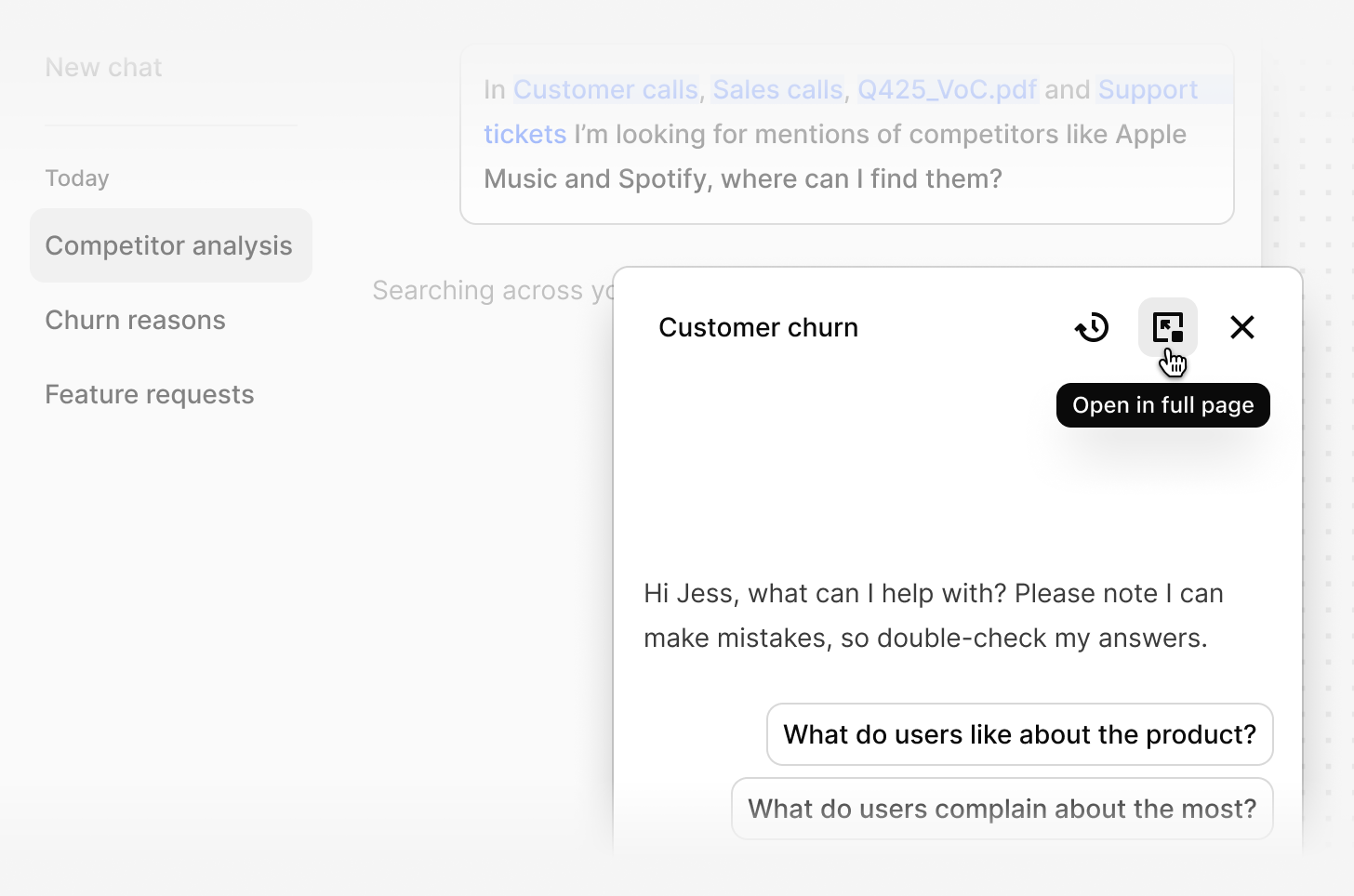
How Chat uses metadata
Chat reads metadata across your data. The better structured your workspace — fields filled in, contacts assigned, segments used consistently — the richer the answers.Who can see what
Chat only searches and cites content your account can already access in Dovetail. It doesn’t bypass permissions.Share your feedback
Use thumbs up and thumbs down on replies. Feedback goes directly to the Dovetail team to improve Chat.FAQs
How much web content does Chat read when a web search is used?
How much web content does Chat read when a web search is used?
When web search is enabled, Chat uses Google’s search and grounding technology to find and summarize relevant information from the web.Here’s what that means in practice:
- Google’s systems may review up to 20 web pages per search request.
- Chat does not read or store raw webpage HTML directly.
- Instead, Chat receives a short AI-generated summary of relevant content, along with source titles and links for citations.
- Each web search response is limited to a concise summary (approximately 2,000 characters).
- A single response may involve multiple web searches if additional context is needed.