

Overview
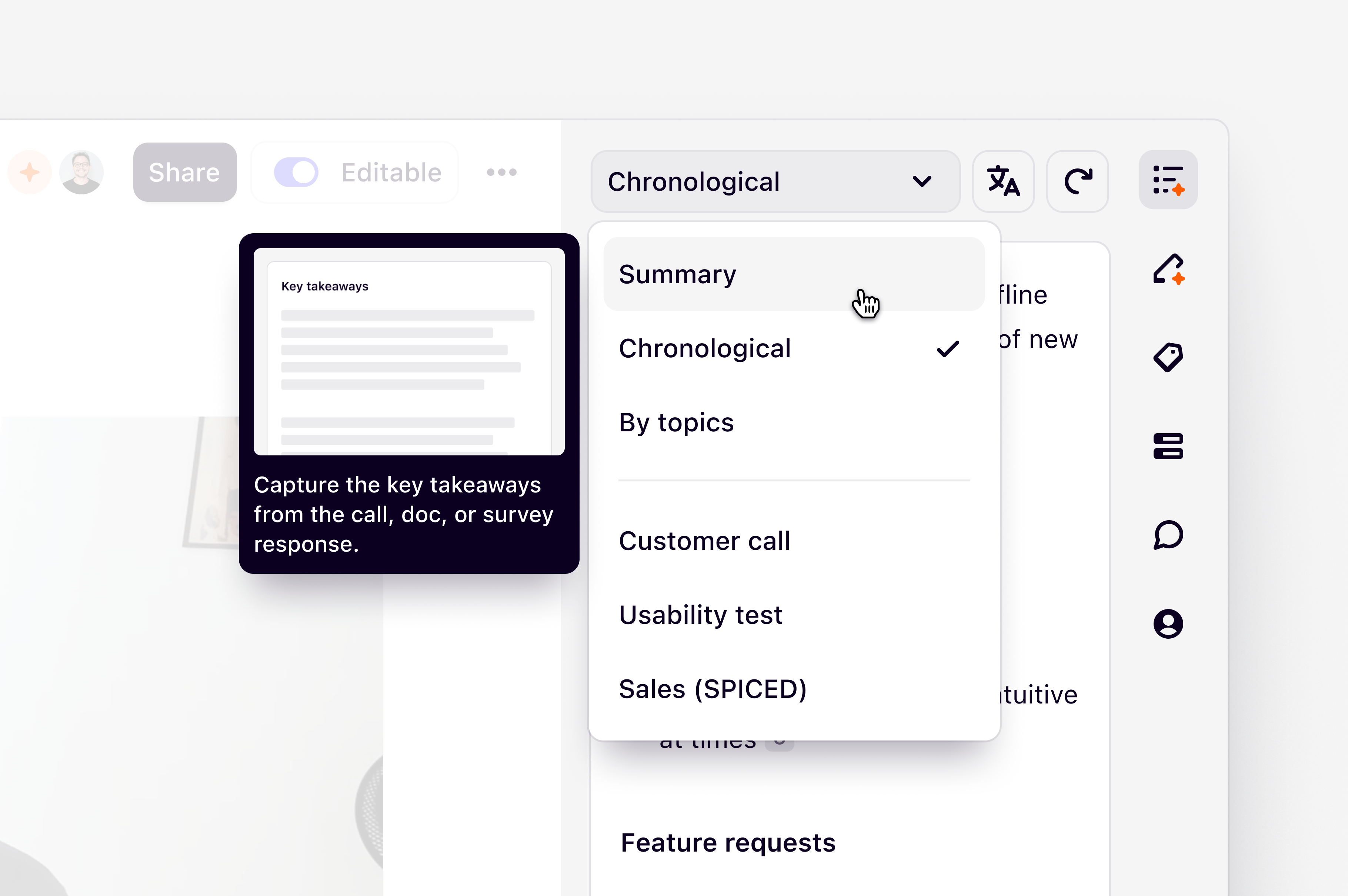
Save time identifying key themes in calls, interviews, and documents with magic summaries, powered by the latest version of Claude. When importing files into a project, we’ll automatically generate a summary of all text content to your preferred structure.Generate a summary
There are different frameworks that you can select from to tailor your data summary output.
To generate a summary, ensure you have edit permissions to your project, and your data page is Editable.
- To do this, open your data object, click
the Summary tab in the sidebar, select your preferred structure,and pressSummarize. - From there, you can review the summary in full and click into citations. You can also select a different summary prompt and click
Regenerateto restructure the summary.
When summarizing documents such as PDFs, references in the summary work differently than they do for calls, transcripts, or notes.
- Clicking a reference from a document will not reliably scroll you to the quote in the document.
- Instead, hovering over the reference will show a tooltip preview of the quoted text.
Translate a summary
You can translate any data summary from one language to another. For this, you must have edit permissions to the original project, and the note or insight must be Editable.- To translate a data summary, open the Summary tab, click on
Translate, and select the language you want to update the summary to. This will update the summary language for all users.