

Data classification & organization in Dovetail
Aka: how to organize data in your workspace to accelerate analysis and make it easy for people to find what they needFour tools in your tool kit
- Folders: How you organize your workspace and sort your projects and channels
- Projects: where your data, analysis and insights are stored for a specific topic/ project
- Fields: add context to your data objects
- Tags: help you identify structure and themes in your data.
Impact on your Dovetail Workflows
Analyzing Data in Dovetail- Select relevant Folder / subfolder
- Open/Create Project
- Upload Data
- Give context to the Data using Fields
- Highlight and tag moments in time to identify themes in your data
- Contextual Chat
- Navigate to relevant Folder (Or project)
- Start asking questions!
- Deep Search
- Use fields and/or tags to filter your frame of reference for your search
Folders
Folders create logical structure based on your organization’s needs. You can think about it them as your high-level “filing cabinet” structure Consider these factors when building your folder architecture:- Wayfinding: First-level folders should be intuitive and obvious. You want to make it easy for users to know where to find things.
- Access Controls: Enables you to limit viewing/editing permissions across teams or regions
- Search/ Contextual Chat: Folders make it easy to filter searches by team, product line, or other natural designations, with contextual chat that changes based on where you are in the folder structure
Common structures
- Team-based: Best for organizations with clear functional divisions (ie mirrors how they’re structured internally and matches their natural working patterns) **
- Product-line: Best for companies with distinct product offerings.
- Domain/Business Unit: Best for large organizations with multiple business areas (ie. business units/domains where many teams work across)
- Geography-based: best for global organizations with regional differences and teams
- Client/ Engagement Based: typically used by consulting teams when working on multiple clients projects in the same workspace
- Customer Journey: used when work is divided by different stages of the customer journey (ex: Discovery, Onboarding, Activation)
Projects
Projects are where you store the data pertaining to a specific project or topic. You can use projects to thoroughly analyze your data to draw very detailed insights or they can house existing research, so it’s always on hand and able to be referenced by your team. When starting to create your projects, there are two “types” of projects to consider- Closed-container: Defined scope with clear start/end dates
- Example Workflow: You pull data in with a specific hypothesis and methodology, conduct your data collection & analysis , and then close it up once the work is complete
- Open-container: Ongoing data collection without defined endpoints
- Example workflow: Sales and customer success teams putting data into Dovetail, as there’s no clear endpoint when that project is “done” - it’s just continual voice of customer collection
[Year] [Quarter/Month] - [Project Name]→ “2024 Q3 - Pricing Research”[Product] - [Research Type] - [Date]→ “Mobile App - Usability Testing - Oct 2024”[Customer Segment] - [Topic]→ “Enterprise Users - Dashboard Preferences”
Fields
Fields provide context that applies to an entire data object, enabling filtering and analysis across your workspace. (ie information that remains true regardless of the content being discussed) At its core, a field is a filter for you to be able to refine your work and put them into the groups that you need to conduct your analysis. Pro-tip: You can think of fields as “columns in a spreadsheet”, they are for structured, consistent, and mutually exclusive metadata.Types of fields
Workspace fields: your context standardization tool- Workspace fields that can be applied to any and all projects across a workspace. These enable you to standardize information that stakeholders need to filter across projects
- Pro-tip: how to think about what workspace fields you need
- What questions does your boss or your boss’s boss ask you? What are they asking for?
- With that in mind, do we have the fields workspace wide to be able to filter the data appropriately to answer these questions?
- Common Workspace fields
- Date of Research (different than uploaded to Dovetail date)
- Data Type: (ie. Interview, Survey, Sales Call, Usability Test)
- Product/Feature Area
- Plan/Subscription type
- Customer demographics: (ie. Segment, Persona, Role, Industry)
- Geographic Region
- Interview Stage
- Fields that orient the viewer
- Quarter/ Year published: how recent is this insight?
- Type of Insight: helps easily differentiate between different artifacts in Dovetail (ie final report, highlight reel, feedback for product, etc)
- Link to deck: if uploading a completed presentation into Dovetail for searchability and record keeping; always link to the original file
- Fields that drive or track action
- Status: How you can track impact - Is this Insight new, under review, validated, or has action been taken?
- Priority/Severity: How important is this finding? This helps product managers and designers prioritize work.
- Ownership: Which team or squad is responsible for acting on this insight?
Tags
Tags attach to specific moments within data objects and are meant to help you find structure/ themes within your research (examples: feedback type, sentiment, competitor mention, etc) Tags are a tool in your kit to help identify themes, patterns, and insights across content. They help parse different discussion topics within the same piece of data, allowing you to cluster similar content for analysis.Types of tags
Workspace tags: can be shared across any and all project in a workspace and create a common language for analysis-
Workspace tags are particularly valuable because they enable cross-project analysis and prevent duplicates. They also decrease the work of your teams because we can pre connect a global tag board to a project template
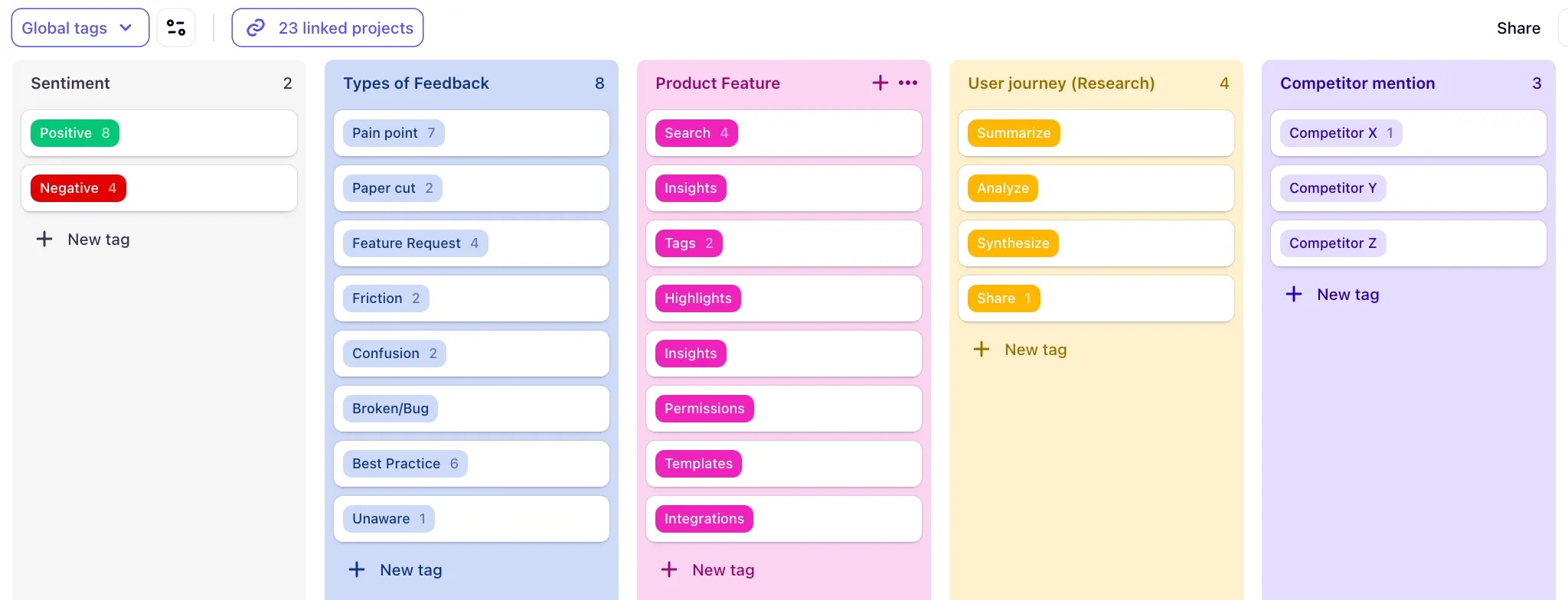
- Pro-tip: workspace should be thought of as building blocks - ie combine different tags (Pain point + search; Positive + Docs, etc) rather than having every iteration written out
Governance: How to manage your global taxonomy
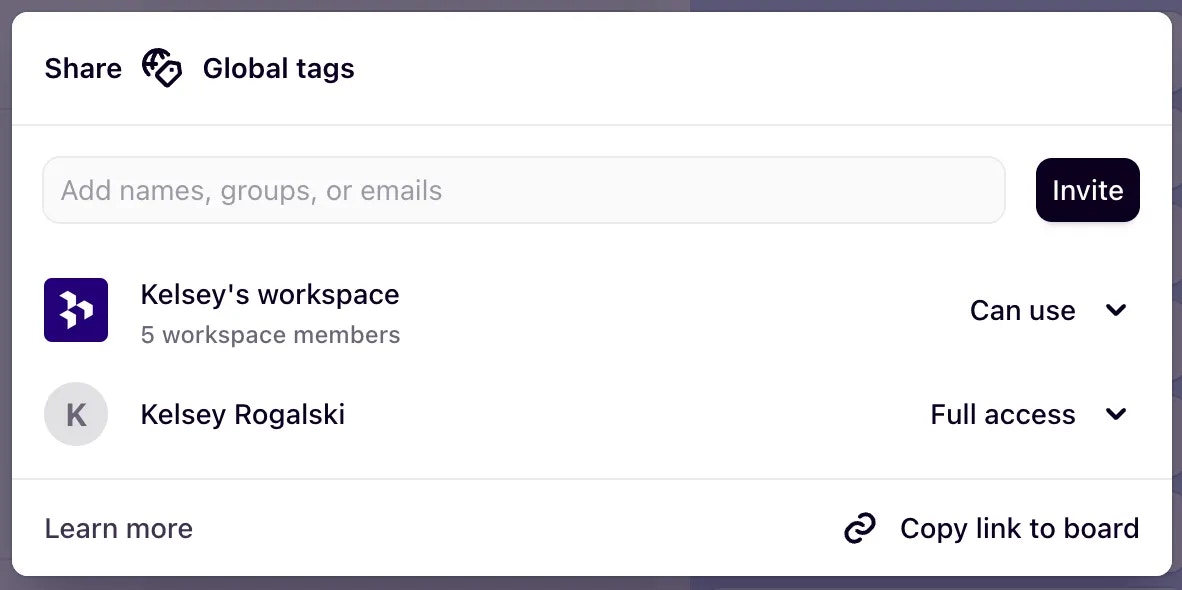
Enabling your teams to utilize your global taxonomy (and how to make sure they don’t accidentally delete it)Set-up Edit Controls
- Once you create your workspace tag board and/or field group, be sure to make the following change to the access controls.
- We want to make sure team members can USE the workspace tags and fields, but we don’t want them to accidentally delete or change them because of the cascading effects throughout the workspace.
System Maintenance
- Designate Ownership: Appoint a Research Ops manager, a lead researcher, or a small committee as the “gardeners” of the workspace taxonomy. They are responsible for its health.
- Create a “Dictionary” in Dovetail: Create a
READMEproject or note in Dovetail that serves as your taxonomy guide. It should list all global fields and tag groups, explain their purpose, and provide usage examples. This is the single source of truth for the entire team. - Establish a Process for Change: No one should be able to add a global field or tag on a whim. Create a simple process, like a request form or a dedicated Slack channel (
#dovetail-governance), where team members can propose new additions. The “gardeners” then review, refine, and add the new item to ensure it’s consistent. - Audit and Prune Regularly: Once a quarter, the owners should review the taxonomy.
- Merge duplicate tags (
on-boarding->onboarding). - Archive tags that are no longer relevant.
- Check usage stats to see which fields are being ignored.
- Merge duplicate tags (
What are the downsides to having a deep folder structure?
What are the downsides to having a deep folder structure?
Deep folder structures (more than two-three levels) can be difficult to navigate and make it harder for users to find what they need. You don’t want to be so granular that then it becomes hard to figure out where you’re supposed to go. Deep structures can create confusion where users get lost easily and are unsure where to find what they need.
How many fields is too many?
How many fields is too many?
Our motto is “less is more” for fields. The likelihood that teams will maintain huge fields lists in the long term are very small. This can put a damper on their workflow and become frustrating. When getting started with creating your first set of workspace fields, we recommend utilizing the “rule of five”Pro-tip: utilize the Rule of 5
- If you could only have 5 fields on every data object in your dovetail workspace, what would they be and why?
- This helps to put the blinders on and prioritize what you’re actually going to need and use
- The rule of 5 can be applied to both tag groups and fields, helping teams focus on the most essential data classification elements that will actually be used consistently across projects rather than creating overly complex taxonomies that become burdensome to maintain.
How big is too big for a tagboard?
How big is too big for a tagboard?
- While there isn’t an official definition about the meaning of “too big”, I would keep in mind that you want to make it easy for your team to be able to find and use the tags. If a tag board has too many sections and tags, users can easily face analysis paralysis
- Sometimes, customers may have multiple global tag boards for various teams/ business units/ etc, to make it easy for people to know where to find the tags they are looking for