

Manual and automatic redaction is only available on the Enterprise plan.
Overview
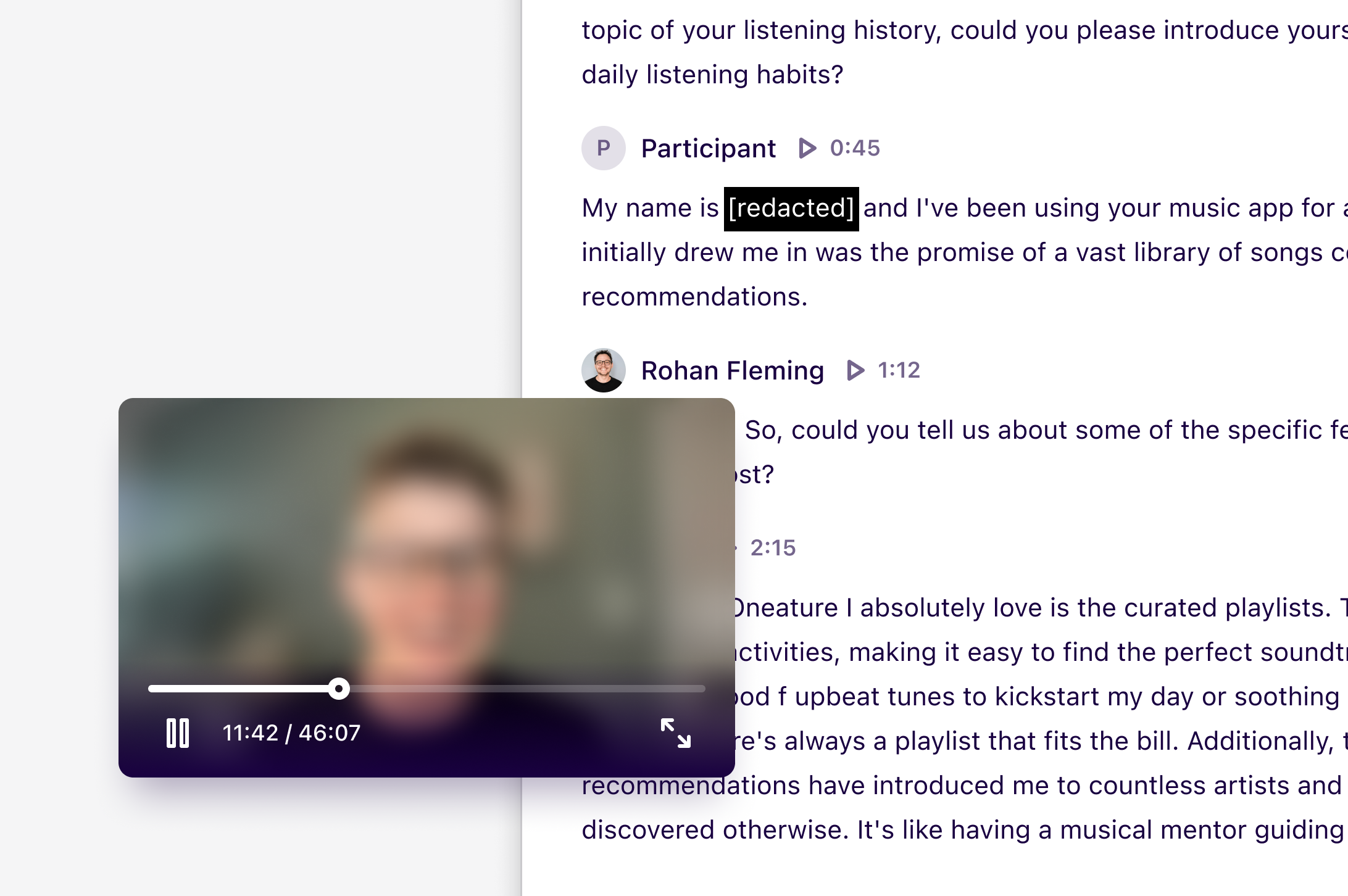
Automatic and manual redaction help you protect sensitive information in videos, audio, and transcripts by blurring, muting, and redacting content where required. This also helps teams move through analysis faster by reducing review and clean-up time. Redactions and blurring will also be applied to relevant highlights in your project and their references within docs across your workspace. If a highlight has already been used elsewhere before redaction is applied, those existing references will need to be updated to display the redacted version. Learn more about updating references →Dovetail will reprocess and replace the original video on your note with a redacted version when redactions are made. This can take 2-3 times the length of the original video to process.For example, redactions made on a 1-hour video can take 2-3 hours to be processed and become visible across your workspace.
Who can redact and restore data
- Manual redaction can be performed and restored by anyone with Full access or Can edit permissions in a project
- Automatic redaction settings can be configured only by workspace admins via ⚙️ Settings → Data redaction → Select your preferred redaction workflow under Automation level
Automatically redact sensitive data
Automatic redaction uses AI to identify and redact sensitive information. While it does most of the heavy lifting, results may not be 100% accurate. We recommend reviewing redactions, especially in Suggest mode, to ensure all sensitive content is handled correctly.
Configuring automatic redaction
- ⚙️ Settings → Data redaction
- Choose an automation level:
Off: No automatic redaction or suggestions will be appliedOn: Applied automatically whenever eligible content is processedSuggest: In Projects, Dovetail suggests potential redactions directly in the transcript for review before applying, while Channels are always automatically redacted due to high data volume
- Optionally edit the instruction prompt to guide how sensitive content is detected, such as specifying terms, identifiers, or data types that should always be masked.
- Click
Saveto apply changes.
Always redact and never redact:
In addition to the instruction prompt, you can maintain explicit lists of terms to always or never redact. These lists give you precise, rule-based control that overrides the AI’s own judgment.- Always redact: Terms added here are always redacted, even if the AI misses them. These terms are case-sensitive.
- Never redact: Terms added here are never redacted, even if the AI flags them. These terms are case-sensitive.
Because these lists are case-sensitive, make sure the terms you add match the casing used in your source data exactly, or they won’t be applied correctly.
Blur and audio/transcript toggles
You can also control what gets redacted beyond just text:- Blur video: Toggle on to blur the full screen of the redacted video, covering visual details. Toggle off to leave video visuals untouched.
- Redact audio and transcript: Toggle on to mute all audio and hide the transcription text for redacted sections. Toggle off to leave audio and transcript untouched.

Reviewing grouped suggested redactions
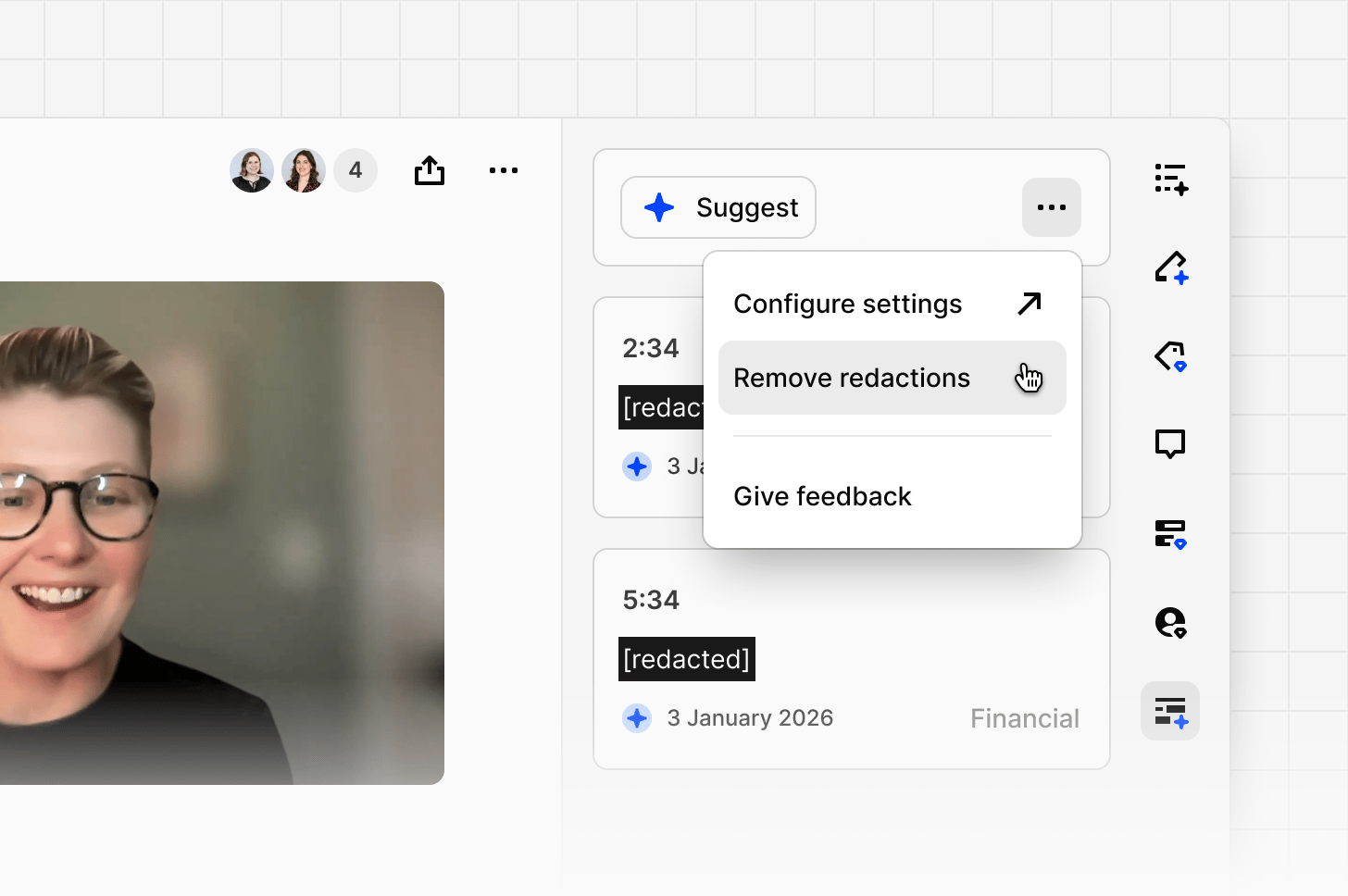
WhenSuggest mode is enabled, suggested redactions are grouped by term so you can review repeated instances together rather than one by one.
- Use the arrow navigation on each redaction card to move between instances of the same term.
- To accept or reject all instances of a term at once, use the
Accept allorReject allbuttons in the sidebar. - To accept a single instance, click
Acceptdirectly from the transcript toolbar.
Automatic redaction for individual projects or channels
By default, all projects and channels inherit the workspace-level automatic redaction setting. To adjust this for a specific project or channel:- Click the
•••menu on the top right corner of a project or channel - Select
Automation - Set
Redact sensitive infotoOn,Suggest, orOff
If automatic redaction is set to
On for a project or channel, changes will not be applied retroactively to existing data. To remove redaction from previously processed data, re-sync with the updated configuration.Automatically redact Channels data
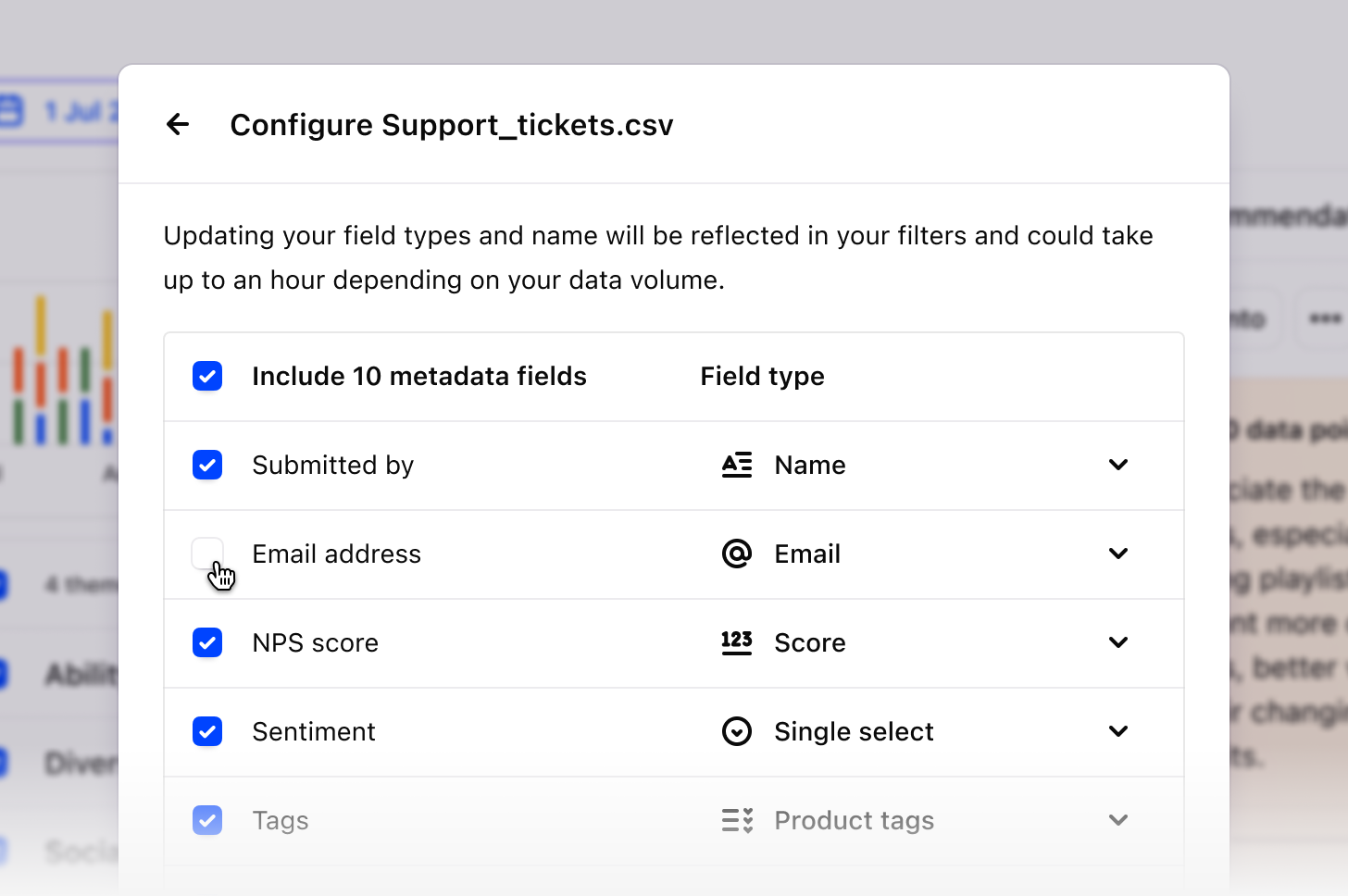
If redaction is enabled, all data points containing sensitive information within the Channel will be redacted, in accordance with the workspace-level prompt. This is due to the high volume nature of data points within Channels. Redaction will not be applied to back-filled data, and if you change the redaction prompt after importing, it will not update the existing data points. If you wish to remove customers’ email addresses from the data point view, you can unselectemail when configuring fields upon import. You can also re-configure your fields at any time by selecting:
SourcesMore actionsConfigure
Updating the redaction prompt for existing data
Updating the workspace-level prompt will only apply to new imports. Existing transcripts won’t automatically reprocess with the updated instructions. To apply the new prompt to already imported data:Saveyour updated prompt in Workspace settings- Navigate to the previously imported transcripts
Reject allexisting suggested redactions- Click
Suggestto reprocess the transcript using the new prompt
Manually redact sections of your video and transcript
Users with Full or Can edit access to the project can redact individual sections from videos within notes. This includes the ability to blur, mute all audio, and hide the text shown in the transcript.- To redact a specific section of a video, highlight a section of text in the transcript and select
Redactfrom the action menu. - From there, you can choose to redact video, audio, and transcript, or both, from the redaction modal and press
Redact.
Blur an entire video
- To blur an entire video:
- Click
•••in the top right corner of the video - Select
Blur video.
- Click
- If you wish to unblur an entire video, click
•••again and pressUnblur video.
Restore redacted data
You can restore video data that has been blurred or muted and redacted text from within a transcript. Any user with Full access or Can edit access to the project can restore redacted data. To restore redacted data:- Navigate to the redacted section within the transcript and click on it
- From there, press
Edit redactionfrom within the action menu - From here, use the toggles to restore the redacted data.
Bulk un-redact data in Projects
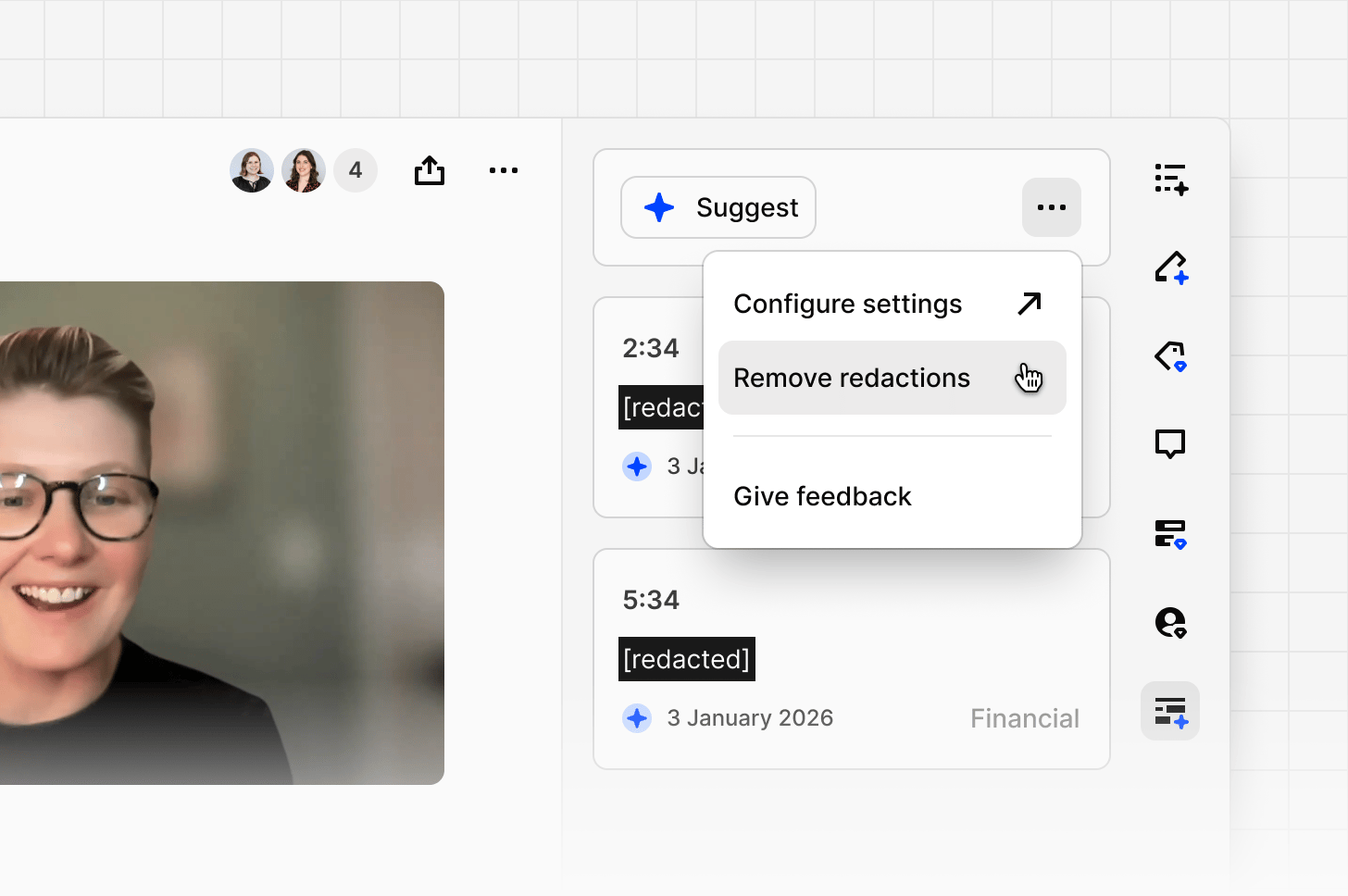
You are always in control of the redactions applied to your data. If you applied redactions in error, your privacy requirements have changed, or redactions were applied too broadly, you can remove them at any time across a single data point or an entire project.- Open the options menu
•••on any data point in your project. - Select
Remove redactions. - Confirm to apply the changes.
••• and select Remove redactions.
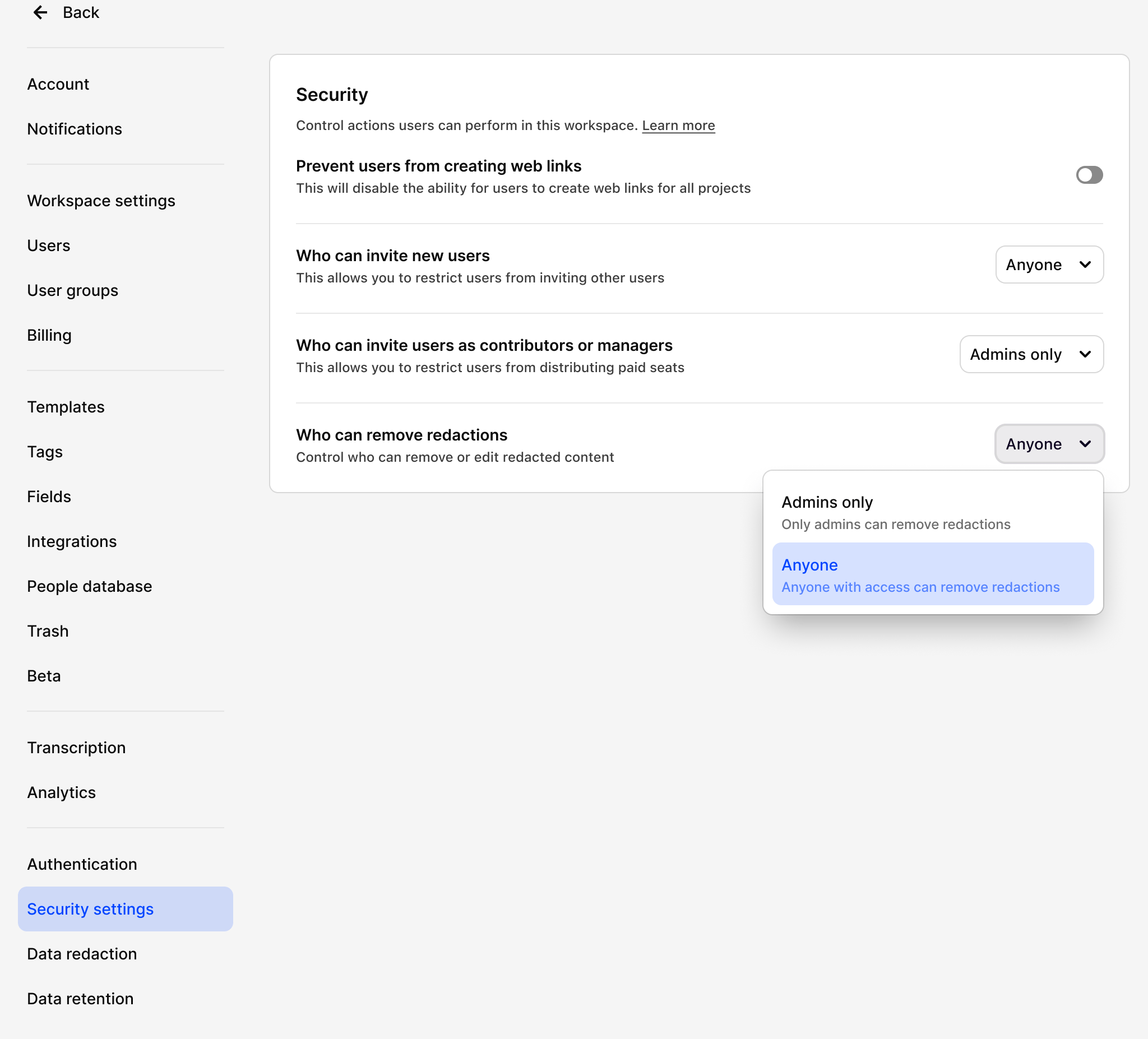
Workspace-level control over un-redacting
Workspace admins can control who is able to remove redactions fromSecurity settings. This can be restricted to Admins only or left open to Anyone with access.
When set to Admins only, no one else in the workspace will be able to remove redactions, regardless of their project role. This gives organizations with strict data governance requirements a way to enforce tighter control over redacted content.
If you are unable to remove redactions, check with your workspace admin to confirm the setting in Security settings.
FAQ
Is blurring also applied to thumbnails of the video?
Is blurring also applied to thumbnails of the video?
Yes! Thumbnails to the video across your workspace will also be blurred, however, this does not happen immediately, so we recommend waiting until it has been applied to all references before sharing.
Are subtitles also redacted?
Are subtitles also redacted?
Yes, subtitles will also be redacted, but you’ll need to refresh your page for them to update.
Can you export a redacted original video?
Can you export a redacted original video?
Exporting redacted videos is disabled due to security reasons.
Can I redact an audio file?
Can I redact an audio file?
No. Redaction is only available for video files at this time and is not supported for audio-only files.
Why aren't my videos redacted?
Why aren't my videos redacted?
Dovetail will reprocess and replace the original video on your note with a redacted version when redactions are made. This can take 2-3 times the length of the original video to process.For example, redactions made on a 1-hour video can take 2-3 hours to be processed and become visible across your workspace.
Why do I see this message "Video is still processing and will be available soon" within the video player?
Why do I see this message "Video is still processing and will be available soon" within the video player?
This message within the video player lets Viewers know that redactions are being processed on a video. They’ll be able to play the video once it’s completed.